The console that gives your station a true broadcast sound
Option not yet available:
Sound processing is currently being finalised. On your dashboard, the page currently displays
"Coming soon": the console described below cannot yet be
controlled from your account. This guide is published in advance so you know
exactly what is coming, what it will change on air, and what it will cost.
What is "Sound Processing" for?
A web radio broadcasts tracks that do not all share the same volume or the same balance: a recent release sounds loud and bright, a track from the 1980s sounds weak and dull, and a voice recorded on a microphone gets buried under the music. Sound processing is the audio chain that corrects all of this at the output of your station, on the stream, continuously.
This is exactly what an FM station does before its transmitter: equalise, level out volumes, add density, widen the stereo, then limit to prevent clipping. The result is the "radio sound" — the one that stays consistent regardless of the track, and that holds its own when a listener switches from your web radio to a major station.
Processing is applied to the stream, not to your files: your music and productions are never modified.
It runs 24/7, on everything that goes on air: music, jingles, features, live broadcasts.
It is configured per station: each of your stations has its own settings.
Good to know:
Do not confuse this with the audio settings of a production. Those adjust the voice and background music within a file, once. Sound processing, on the other hand, retouches the entire stream, continuously.
Example
Radio Soleil plays three tracks in a row. Without processing, the listener keeps adjusting the volume:
With processing active and the Consistency fader at 40, all three come out at the same perceived level.
Why this matters: this is not a sound engineer's luxury — it is what stops listeners from reaching for the volume knob, and therefore from leaving your station.
Where to find it, and what you see today
The page is already in your dashboard, under "Sound Processing". At the top, a banner explains how it works and the terms: settings reach the station in approximately 3 seconds, you hear them after the normal player delay (10 to 30 seconds), a 20-minute trial is included free of charge, and the option then costs €20/month.
Until the option is opened, the console is covered by an overlay displaying "Coming soon": you can see the screen but cannot interact with it yet. No action is required on your part and nothing will be charged at this stage.
Tip:
Do not look for a "request access" button: the option will open for all stations at once. When the time comes, the overlay disappears and the "Enable processing" toggle becomes clickable.
The information banner at the top of the page: delay, free trial and option price Click to enlarge
The processing console
Everything fits on a single screen called the "Processing Console". From left to right, in its title bar:
A status indicator: "Click Enable processing — 20-min trial included", "Trial: 12:04 remaining", "Option active", or "Applied — audible in ~20 s" after each adjustment.
A station selector: the console controls only one station at a time. If you have several stations, switch between them here — the faders reload with that station\'s settings.
The "Enable processing" toggle: when checked, the chain is applied to the station; when unchecked, your stream goes out raw, with no processing.
Good to know:
Unchecking the toggle does not lose your settings: the fader positions remain saved for that station and are restored as-is the next time processing is enabled.
The title bar: status indicator, station selector and the "Enable processing" toggle Click to enlarge
The six ready-to-use sounds
The "SOUNDS:" row offers six starting points. One click sets all nine faders at once; you can then adjust whatever you like. These are not locked modes, simply preset positions.
Hit / Dance — the most aggressive: prominent bass, open highs, density 75, wide stereo (130%). For a mainstream music station.
Punch — the same spirit, more restrained: density 60, stereo 115%. A good compromise if "Hit / Dance" feels too heavy-handed.
Urban / Bass — the heaviest bass: lows at +4.5 dB and phone bass boost at +3 dB, for hip-hop, R&B, and electronic music.
Gold / Warmth — highs slightly pulled back (-1 dB), moderate density (45): flatters older recordings without making them harsh.
Voice / Talk — presence at +3 dB, lightened bass, consistency at 60: for a speech, news, or podcast station.
Natural — almost transparent: all equalisers at zero, density 15, consistency 10. Corrects volume differences, and nothing else.
Tip:
Always start with a ready-to-use sound, never with the faders. You hear a clear difference immediately, and you then know what you want to fine-tune.
Example
Studio Nova manages two very different stations and does not configure them the same way.
Nova Hits → "Hit / Dance"→Width reduced to 115%
Nova Talk → "Voice / Talk"→Density lowered to 45
Why: a music station needs to be wide and dense to stand out among the competition; a speech station needs to be intelligible, not punchy. Too much density on voice brings up breathing and microphone background noise.
The "SOUNDS:" row and its six starting points Click to enlarge
The nine faders, one by one
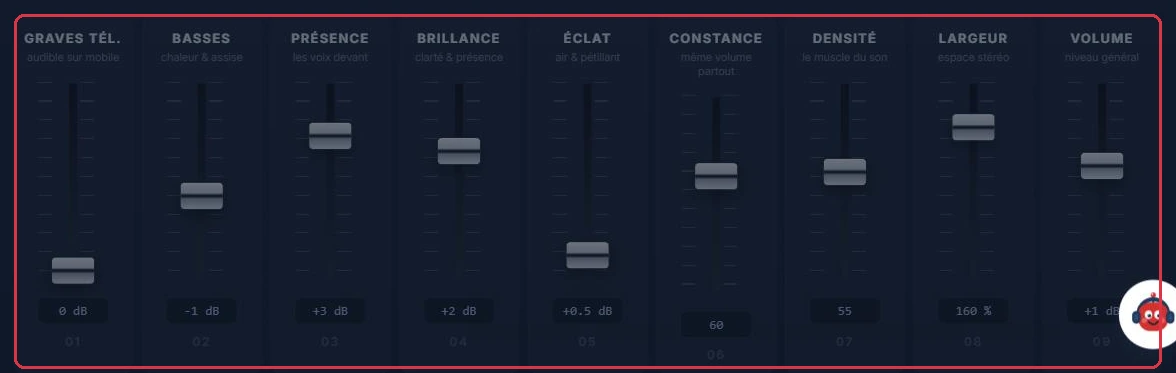
The channels are numbered 01 to 09, in processing order. The rule is the same throughout: up to boost, down to reduce, and the current value is displayed below each fader.
01 — Phone Bass(audible on mobile): boost in the low-mids, around 150 Hz. From 0 to +6 dB. This is what makes bass perceptible on a phone or a small speaker, where true low frequencies do not come through.
02 — Bass(warmth & body): the actual low frequencies, around 90 Hz. From -6 to +6 dB.
03 — Presence(voices up front): the vocal mid-range, around 2.8 kHz. From -6 to +6 dB. The fader to raise when your presenters get buried under the music.
04 — Brilliance(clarity & definition): the highs, around 8.5 kHz. From -6 to +6 dB.
05 — Air(sparkle & shimmer): the air band, around 12 kHz. From 0 to +6 dB. The shimmer of cymbals and the breath of voices.
06 — Consistency(same volume throughout): from 0 to 100. Slow levelling that equalises volume from one track to the next. This is the setting that eliminates differences between songs.
07 — Density(the muscle of the sound): from 0 to 100. Compression — the "radio sound" proper. Reference points: 40 to 60 for a natural result, 70 and above for a big FM sound.
08 — Width(stereo space): from 0 to 200%, set to 100% by default. Below 100% the sound narrows towards the centre; above it, it widens.
09 — Volume(overall level): from -6 to +6 dB. The output level; a limiter placed after it prevents any clipping, whatever you do.
Good to know:Consistency and Density may seem similar but do different things. Consistency acts slowly, from one track to the next. Density acts in real time, within a track. An uneven volume between songs is fixed with Consistency; a sound that lacks body is fixed with Density.
Example
Ambiance FM starts from "Punch" and corrects two faults heard on air, one fader at a time.
"Punch"→Presence +3 dB→Listen 30 s→Phone Bass +2 dB→Listen 30 s
The presenters were getting buried under the music: Presence brings them back to the front. Listeners on mobile could not hear any bass: Phone Bass makes it audible on a small speaker, without touching the actual bass frequencies.
Why one fader at a time: if you move four at once and dislike the result, you will not know which one caused the problem. One fader, thirty seconds of listening, then the next.
The nine channels, numbered 01 to 09, with their value displayed below each fader Click to enlarge
"Listen to the station" and the delay
The "Listen to the station" button starts playback of your stream within the page. This allows you to hear the effect of your settings without opening a separate player.
The point that surprises everyone: what you hear is delayed. A setting reaches the station in 3 seconds, but your player always has 10 to 30 seconds of stream buffered in advance. In other words, a fader you move now will be audible about half a minute later.
Each time you click "Listen to the station", the stream is reloaded without cache: this is the way to get a fresh start after a series of adjustments.
The status indicator displays "Applied — audible in ~20 s" to prevent you from drawing conclusions too quickly.
Tip:
Never move the same fader twice in a row without waiting. That is the surest way to push it far too high, then pull it far too low.
The "Listen to the station" button, above the visualisers Click to enlarge The buffer delay reminder, below the visualisers Click to enlarge
The two visualisers and the VU meter
During playback, three displays let you see what you are hearing.
"Sound Energy" — the waveform. The more you raise Density and Volume, the more it fills its frame. A waveform that permanently touches the top indicates settings that are pushed too far.
"Bass ↔ Treble" — the spectrum. The Bass and Brilliance faders can be read directly here: the curve dips or rises on the corresponding side.
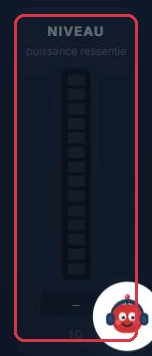
"Level"(perceived loudness) — channel 10, on the far right. This is a VU meter, not a control: it shows the perceived loudness of your station during playback.
Good to know:
The visualisers only work when playback is running. If the screen is frozen and the VU meter reads zero, simply click "Listen to the station".
"Sound Energy": the waveform fills up with Density and Volume Click to enlarge Channel 10, "Level": a VU meter, not a control Click to enlarge
The 20-minute trial and the €20/month option
Sound processing consumes server resources continuously, on every processed stream: it is a paid option, separate from your subscription.
On the very first click of "Enable processing", a 20-minute trial is offered free of charge. It starts immediately and a window confirms this.
During the trial, the status indicator shows the countdown — "Trial: 12:04 remaining" — updated every second.
At the end of the 20 minutes, processing stops automatically and your station reverts to its raw sound. There is no risk of an outage or an unexpected charge.
The trial is offered only once. To keep processing, you subscribe to the option at €20/month, added to your subscription and billed pro rata for the remaining months.
Payment is handled directly from the page, without contacting support. Once the option is taken, the status displays "Option active".
Good to know:
The option is attached to one station\'s subscription. If you run several stations and want all of them processed, the option must be taken out on each one.
Example
Radio Soleil wants to judge for itself before paying. Twenty minutes is short: it pays to prepare.
Open "Listen to the station"→Listen 2 min to the raw sound→Enable — trial starts→"Hit / Dance"→Wait 30 s→Compare on mobile
The manager starts the trial during a varied music slot, not during a speech programme, and listens to two minutes of raw sound before enabling processing: without a reference point, the ear adjusts within thirty seconds and you can no longer judge anything.
Why also test on mobile: that is where the majority of listeners tune in, and it is the only place where the "Phone Bass" fader can be properly assessed.
What processing does not do
Better to say this upfront, to avoid disappointment:
It does not fix a bad file. An MP3 encoded at too low a bitrate or a clipped microphone recording will remain poor — processing will actually make the flaws more noticeable.
It does not modify your library. Files in "My Music" and your productions remain strictly unchanged.
It does not replace the settings of a production. A feature where the music drowns out the voice must be corrected in the audio editor, not here.
It cannot be set once and forgotten blindly. Pushed too far, it causes ear fatigue: a very dense sound delivers impact for the first few minutes, then becomes tiring after an hour of listening.
Tip:
If you are unsure, stick with a ready-to-use sound without modifying it. They are calibrated to hold up over time — which is the criterion that matters for a station listened to in the background all day long.