
It shows exactly where your account's disk space is going, and how much you have left relative to your plan's quota. This is the page to open when a file upload fails or the sidebar gauge starts turning red.
You can find it in the "Tools" > "Storage" menu. There is also a shortcut at the bottom of the sidebar: the small storage gauge links directly to it.
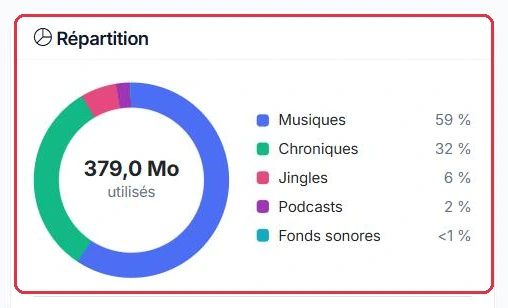
The "Breakdown" card displays a coloured ring with the "used" total at its centre, and alongside it the share of each category as a percentage. A category that takes up very little but is not empty is shown as "<1%".
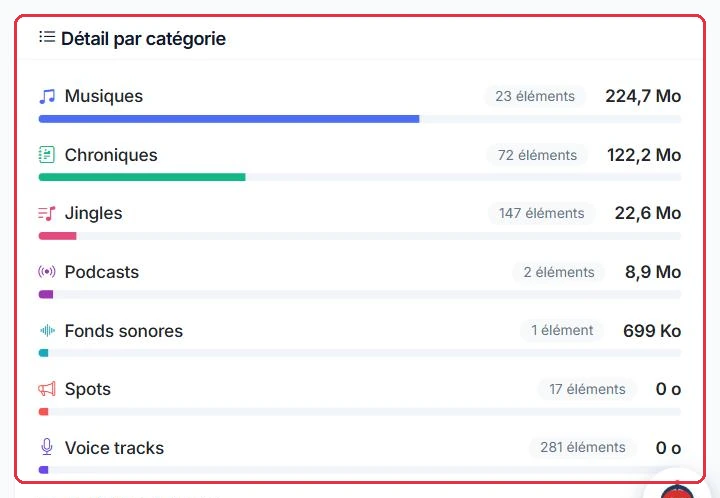
The "Category detail" card presents the same data as real values, with the number of items and a progress bar. The categories counted are:
Radio Soleil can no longer import a track. The first step: open "Tools" > "Storage" and read the "Category detail" card from top to bottom.
Categories are sorted from heaviest to lightest: the first line is therefore always the one to address. Here it is "Music", with its item count displayed right next to the label.
Why: there is no point tidying up "Covers & images" when it shows "<1%". On most accounts, everything comes down to one or two categories.
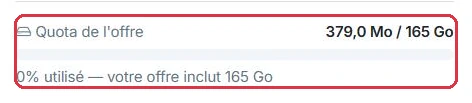
Below the ring, the "Plan quota" line shows your usage in the form "space used / X GB", with a progress bar that changes colour:
The quota is a shared pool for the entire account, made up of three parts:
The line below the bar breaks this down: "X GB included in your plan" then "+Y GB of options", and "Available space". If no quota is defined for your plan, the page indicates this with "No quota defined for your plan."
At Radio Soleil, the bar is red and the line shows "92% used". Two stations are hosted on the account: their two quotas are already combined in the figure displayed.
The order of operations, from most to least effective:
Why: there is no per-station allowance, only a single shared pool. Freeing up space from any one of your stations therefore benefits both.
When you delete a track in "My Music" or a production in the "Production" menu, the item disappears from your screens and playlists, but the file is kept for a while, in case you want to recover it. It therefore continues to occupy your space, and the total on this page does not decrease.
The "Recycle bin" card makes this space visible: "N items you have deleted are still taking up X of your space." The "Empty recycle bin" button permanently deletes these files and frees up the space for good. The confirmation warns: "N item(s) will be permanently deleted and X will be freed. This action is irreversible." Once emptied, the page recalculates automatically.
Radio Soleil deletes around thirty podcasts, goes back to "Storage", clicks "Recalculate"… and the total has not changed.
Why: deletion is an archiving step, not an erasure. As long as the recycle bin has not been emptied, nothing has left the disk — this is the first thing to check before deleting more files unnecessarily.
Below the quota, the "Need more space?" card offers additional storage tiers: "+4 GB" at €4.00/month, "+8 GB" at €7.00/month, "+12 GB" at €10.00/month, and "+24 GB" at €18.00/month. As the card states: "Add storage to your plan at any time. Tiers are cumulative and billed on a pro-rata basis until your subscription renewal date, then renewed along with it."
The "Add storage" button takes you directly to the "Add options" section of the "Subscription" page. If you have already purchased some, the card reminds you "+X GB already added". It also links to "Optimise storage" to free up space at no cost.
Calculating disk space is resource-intensive: it is therefore cached and refreshed automatically every hour. The date of the last calculation is shown at the bottom of the detail card: "Calculated on …".
In practice: if you have just emptied the recycle bin or replaced some tracks, the figures will not change immediately. To force an immediate recalculation, use the "Recalculate" button at the top right of the page.
Radio Soleil has just emptied its recycle bin. The page still shows the same total as before, and the "Calculated on …" note still shows the time before the clean-up.
After recalculation, the figure may drop less than expected. This is normal: the measurement reads the actual disk, which also contains normalised versions and working files linked to your imports.
Why: without this click, you might wrongly conclude that the clean-up freed nothing — and delete more files unnecessarily.


If your personal music takes up most of the space, a tool can help you recover a significant amount. It is accessible from "My Music": the "Save storage space" banner offers the "Scan my files" button.
The scan compares your personal files against the VestaRadio Audiotech catalogue, and lists the tracks you have imported that already exist there. The results banner shows the number of matches and the space that can be recovered.
Since "Music" is the first line in the breakdown, Radio Soleil runs the scan before deleting anything.
The banner then shows the number of matches found and the space that can be recovered. If the scan finds nothing, the page simply displays "Nothing to optimise" and you will need to proceed with standard deletion.
Why: optimisation only recovers space from tracks already present in the Audiotech catalogue. Your own jingles, voice tracks, and productions are never affected — so what the tool announces is the maximum achievable, not your total music count.

To be perfectly clear, as this operation is destructive. When you click "Replace selection" and then confirm with "Replace and free up":
The confirmation window states it unambiguously: "This action is irreversible." Unlike a standard deletion, replacement does not go through the recycle bin: there is no going back, and no restoration possible by support. If you have the slightest doubt about a file — a rare version, a custom edit, an exclusive recording — keep your own.
Radio Soleil goes through the list track by track rather than clicking "Replace all". Two cases arise.
Before confirming, check the badge showing the number of playlists affected: it indicates how many programmes will point to the new version.
Why: replacement is irreversible and support cannot restore anything. For a unique recording, the space saved is never worth the lost file — and if you want to keep a copy, download it from "My Music" before confirming.

A confirmation message shows the number of tracks replaced and the space freed, then the scan restarts automatically to display what remains to be optimised.
Some space may be reported as "scheduled for deferred release": the file has been removed from your catalogue, but its physical deletion happens a little later, in the background. The total on the "Storage" page will therefore update at the next recalculation.
Radio Soleil\'s green banner announces the tracks replaced, the space freed, and adds a note "scheduled for deferred release". They then return to the "Storage" page.
If the bar has not yet turned green, wait a moment and recalculate again: the deferred portion has not yet left the disk.
Why: the space announced by the banner is what the operation will free up, not necessarily what has already left the disk at that very moment. The "Storage" page, after recalculation, gives the actual figure.
