Your radio\'s public website, without writing a single line of code
What is "Radio Website" for?
"Radio Website" creates the public website for your station: home page, news, podcasts, team, schedules, contact… You will find it in the "Web Broadcasting" > "Radio Website" menu.
Your site is served at an address such as votreradio.vestaradio.eu, and you can then connect your own domain name to it. The same content also powers your mobile application (menu "Web Broadcasting" > "Application"): you only enter the information once.
Access: the "Radio Website" option in your plan, or a free 7-day trial (button "Try free for 7 days").
At the end of the trial, the button "Add the option to my plan" takes you to the subscription page.
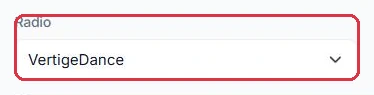
If you manage several radio stations, a drop-down menu at the top of the page lets you select the relevant station: each station has its own website.
Good to know:
An account without an installed radio station can still have a website: simply enter your stream URL in the "Radio(s)" tab. Without this stream, the public site\'s player has nothing to broadcast.
The "Radio Website" page, in the "Web Broadcasting" menu. Click to enlarge The radio selector: each radio station on the account has its own website. Click to enlarge
Publishing your site (and the live preview)
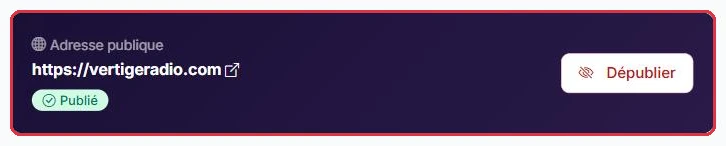
The dark banner at the top of the page displays your "Public Address" and the site status:
"Draft": you can work quietly; no one else can see the site.
"Published": the site is live for your listeners.
A toggle button switches between the two states: "Publish the site" or "Unpublish".
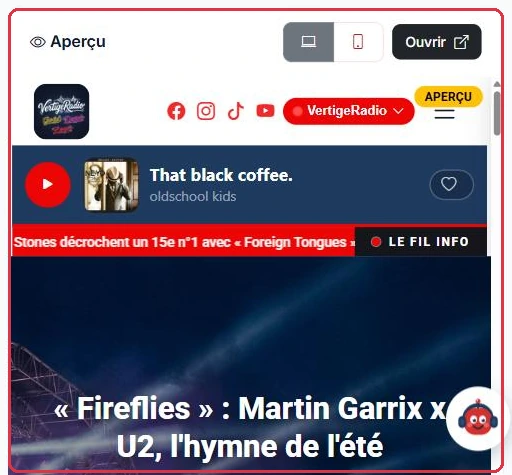
On the right, the "Preview" panel displays your site in real time, even in draft mode. Two buttons toggle between "Desktop" and "Mobile" views, and the "Open" button launches the actual site in a new tab.
Tip:
Always check the "Mobile" rendering before publishing: the majority of your listeners will arrive from a phone.
The public address card: the site link, its status and the "Unpublish" button. Click to enlarge The live preview, with the desktop / mobile toggle and the "Open" button. Click to enlarge
"Appearance" tab
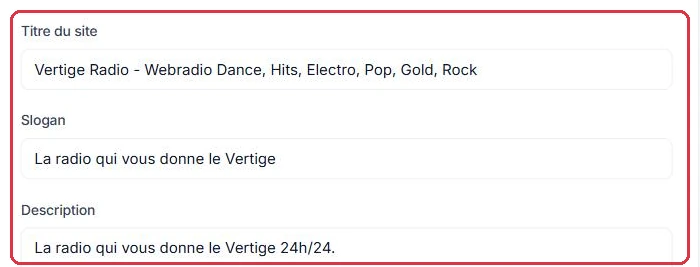
This is the visual identity of the site: "Site Title", "Tagline", "Description" and "Logo".
Three themes are available:
"Classic" — a clean look: hero, sections, cards.
"Magazine" — dark header with centred logo, news ticker, now-playing titles, sidebar.
"Hit-Music Portal" — a wall of radio stations with cover art, rows of podcasts, news cards, a young and colourful feel.
Below the title and tagline, two fields dress the header: "Text next to the logo" and "Tagline below this text". They appear to the right of the logo; leave them empty to display only the logo.
You then set the "Header width" ("Full width" or "Aligned to content", with no effect on mobile), the four colours — "Primary colour", "Secondary", "Background", "Text" — then the "Heading font" and the "Body font" from 16 Google Fonts. Finish with "Save appearance".
Two additional settings apply to the "Magazine" theme:
"Player position": "Top" (the player bar is embedded below the header and remains visible while scrolling) or "Bottom" (bar fixed at the bottom of the screen, overlaying the content). This block only appears with the Magazine theme: the Classic and Portal themes always display the player at the bottom.
"News ticker": the toggle "Show the scrolling banner "News ticker" below the header" automatically scrolls your 8 most recent news items. If no news has been published, the banner will not appear regardless.
Good to know:
The logo accepts JPG, PNG, GIF or WebP formats, up to 3 MB. A heavier file or an unsupported format is silently ignored: if your logo does not change, this is almost always the reason.
The five tabs: Appearance, Content, Menu, Radio(s), Domain Name. Click to enlarge The top of the "Appearance" tab: site title, tagline and description. Click to enlarge
"Content" tab: your site's pages
Each card opens a side editing panel, and the toggle in the top right corner of the card shows or hides the page on the public site. The available cards are "Home", "Team", "News", "Events", "Schedules", "Podcasts", "Videos", "Contact", "Partners", "Social Media", "Dedications", "Alert Banner" and "Pages & Legal".
"Home": a slide carousel followed by free sections, detailed in the next section of this guide.
"Schedules": for each show, you tick the "Broadcast days" (shortcuts: "Every day", "Mon – Fri", "Mon – Sat", "Sat – Sun") and the "Time slot" (start time, optional end time). On the site, the weekly grid is displayed as tabs by day, open on the current day, and the current slot carries the badge "On now".
"Podcasts": you tick the completed podcasts you wish to publish, with a star to feature one and an optional category. The cover art of each episode is used automatically (cards, episode page, social sharing), and the Podcasts page offers a "Subscribe to RSS feed" link: your site serves a /podcast.xml feed that your listeners can add to their podcast app.
"Contact": recipient email, phone number, introductory text and links to Facebook, Instagram, TikTok, YouTube, X. The public form is protected by an anti-bot system and limited to 3 submissions per hour per visitor.
"Pages & Legal": create free pages ("Menu" or "Footer"), use ready-made templates — "About", "Partners", "Advertising", "Join us", "FAQ" — and write your legal notices. You will also find the "Privacy Policy" here: a GDPR template automatically filled in with your radio\'s name, the Contact page email, the site address and the date of last modification. As long as you save nothing, the page follows this template; you can rewrite it entirely, and the "Restore default text" button cancels your version. These two pages are required by law: their name and location (footer) cannot be changed.
The catalogue also includes a "Horoscope" page: its text is provided automatically each day — you have nothing to write. To display it on the home page, add an "Module preview" section and choose "Daily Horoscope".
When the site is first created, only four pages are active: "Home", "Partners", "Legal Notices" and "Privacy Policy". All others are inactive and must be enabled one by one. The home page always remains active.
Good to know:
Deactivating a page deletes nothing: the content is preserved and reappears as soon as you switch the toggle back on. Section and article images are limited to 5 MB (JPG, PNG, GIF, WebP).
Building the home page: carousel and sections
The "Home" card opens the "Home — Hero & sections" panel, with two tabs: "Carousel" and "Sections".
The carousel
Each slide accepts a "Desktop image (landscape)" (5 MB max, ideal 1920 × 800 px) and an optional "Mobile image (portrait)" (displayed below 768 px, ideal 1080 × 1350 px), a title, a subtitle, a "Button text" and its "Link". The "Add a slide" button creates a new one. Without any slide, the home page shows the logo, title and tagline.
Two independent toggles: "Show the carousel on the site" and "Show the carousel in the application". When unchecked, your slides remain saved but are simply no longer displayed on the unchecked platform.
The "Carousel style" block applies to all slides: "Height" ("Small", "Medium", "Large"), "Shadow (darkening)" ("None", "Light", "Medium", "Strong"), "Text position" ("Left", "Centred", "Right"), "Text font", "Carousel text colour" and "Carousel width" ("Full width (edge to edge)").
Finish with "Save home page".
Tip:
As soon as a single slide has a mobile image, the carousel switches to portrait format on phones: add one to every slide, otherwise the others will be heavily cropped.
Sections
The "Sections" tab stacks content blocks below the carousel. The "Add a section" button offers nine types:
"Text", "Full-width image", "Text + image" (with "Image position" set to right or left), "Call to action" (button text and link);
"Module preview": a teaser of a dynamic module — News, Events, Schedules, Team, Podcasts, Videos or "Daily Horoscope" — with the "Number of items" and a "See all" button; remember to activate the corresponding page;
"HTML code": inserted as-is on the public page (iframes, widgets, scripts…), up to 20,000 characters;
"Video (YouTube…)": a YouTube, Vimeo or Dailymotion URL, or a .mp4 video file;
"Image carousel": up to 20 images in square format 800 × 800 px (5 MB max each, cropped to centre), each optionally linking to a page on the site or another URL, with an optional caption. Two layouts: "Carousel" (one image at a time, scrolling) or "Thumbnails" (all side by side), and two widths: "WIDE" (same edges as the home carousel, recommended) or "NARROW" (centred at 1000 px);
"Social media": a row of icons linking to your networks. Nothing to enter here: the addresses come from the "Social Media" card in the builder — update them once and all sections follow.
Each section can be reordered by drag-and-drop or with "Move up" / "Move down", collapsed, deleted, and has two common settings:
the eye icon shows or hides the section on the public site without deleting it (it then carries the label "— hidden");
"Position on the home page", at the very bottom of the panel: "At the very top, ABOVE the home carousel" (just below the header), "Just BELOW the home carousel (full width)" or "Further down the page (in the content)". This setting only takes effect on the home page.
Finish with "Save sections". The custom pages in "Pages & Legal" accept the same blocks.
Good to know:
These sections are also rendered in your mobile application, in the same order and at the same position, in a single-column format. Only the "Module preview" type is not carried over: the app already has a dedicated tab for each module.
"Display" tab: the layout of each module
The "Team", "News", "Schedules", "Events" and "Videos" panels each have two tabs: "Content" (the list of items) and "Display", which selects the layout of the public page. The choice is saved immediately ("Display saved").
Podcasts (in the Podcasts panel): "Card grid" or "List".
Illustrating your content with an AI image
In the "Team", "News", "Schedules", "Events" and "Videos" panels, you can describe the desired image in the dedicated field and then click "Generate". Allow around ten seconds. Your site\'s colour palette is used to keep the result consistent with your visual identity.
The quota is monthly and per site: 4 free images each month.
Beyond that, the "AI Images" option adds 15 or 35 images per month depending on the plan chosen, available to add to your subscription from the billing page.
Only successful generations are counted: a failed attempt costs you nothing.
Good to know:
These images do not consume your AI credits: they use a dedicated quota, separate from the one used for audio production.
Your listeners' reviews
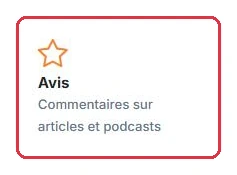
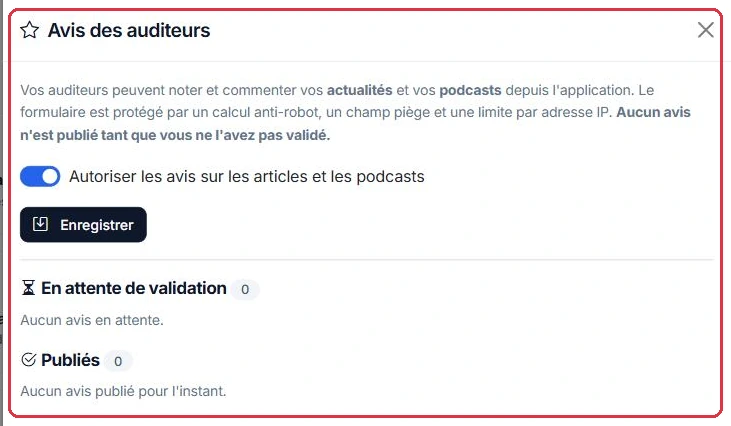
From the "Content" tab, the "Reviews" card opens the "Listener Reviews" panel. Your listeners can rate and comment on your news articles and podcasts, directly from your site and your application.
The "Reviews" card in the "Content" tab of the builder. Click to enlarge
Enabling reviews
The toggle "Allow reviews on articles and podcasts" controls the entire feature. While it is off, no form appears on the listener side. After switching it on, click "Save".
The activation toggle and its "Save" button. Click to enlarge
Nothing is published without your approval
This is the most important point: no review appears on your site until you have approved it. Each review received is placed in "Awaiting approval", with a red badge in the panel title indicating how many are waiting.
For each pending review, three buttons:
the green button publishes the review on your site;
the grey button rejects it: it remains in the database but is never displayed;
the bin deletes it permanently, after confirmation.
Reviews already online appear further down, in the "Published" list. You can unpublish them at any time using the crossed-out eye icon, or delete them.
The "Listener Reviews" panel: the setting, pending reviews, then published reviews. Click to enlarge
Anti-spam protection
The form is protected without any configuration on your part: a simple anti-bot calculation, a honeypot field invisible to a human, and a per-IP address limit. The same visitor cannot submit more than 3 reviews per hour or 10 per day.
A review consists of a first name or username of 2 to 60 characters, and a message of 5 to 1,000 characters.
Example
Radio Soleil publishes a news article about its summer festival and enables reviews.
A listener comments→"1 to approve" is displayed→You approve it→the review appears below the article
Why: pre-moderation prevents you from discovering an inappropriate message on your public site. Make it a habit to open the panel after each article or episode publication: that is where reviews arrive.
Good to know:
Reviews relate to a specific piece of content — an article or a podcast episode — and are displayed below it. This is not a general guestbook for the radio station.
"Menu" tab
This tab controls the order of entries in your public site\'s navigation menu. You move each item using the "Move up" and "Move down" buttons or by drag-and-drop, then click "Save order".
Disabled pages remain visible in the list, greyed out, with the label "disabled": they keep their position but do not appear in the menu.
Your custom pages carry the badge "custom page".
Legal notices and the privacy policy do not appear in this list: they are displayed only in the footer.
"Radio(s)" tab
Here you enter the "Radio stream (stream URL)": this is the Icecast or Shoutcast link that the public site\'s player will use. It is particularly useful if your radio is hosted on another platform, and it is essential for a site without a radio station installed with us.
If your account manages at least two radio stations, you can also enable the "Multi-radio selector": tick the stations to include, sort them using the arrows, and save. The first station in the list carries the badge "on arrival": it is the one that starts in the player when the site is opened.
"Domain Name (.fr, .com)" tab
Two levels of address coexist.
The free subdomain. Under "Your site address", enter the name you want: letters and numbers only, between 3 and 63 characters. Availability is checked as you type, and many technical names are reserved ("www", "admin", "player", "demo"…). Confirm with "Validate the subdomain".
Your own domain name. Two options:
"I already have a domain": enter it, then create two A records with your registrar (OVH, Gandi, IONOS…), on @ and on www, pointing to the IP address shown on screen. DNS propagation takes anywhere from a few minutes to 24 hours; activation and the HTTPS certificate are then automatic (checked every 5 minutes), and the "Check configuration" button forces an immediate check. The "Remove" button detaches the domain from the site.
"Order a domain — €50/year": we handle registration, DNS configuration and annual renewal. The "Check" button verifies the name\'s availability before purchase, then "Order" opens the secure card payment. After payment, our team registers the domain and activates it within 24 to 48 business hours, with a confirmation by email.
Good to know:
Changing your subdomain changes your site\'s public address immediately: remember to update any links you have already shared, including the one used by your mobile application.