This is the step that turns your subscription into a radio station that is actually live. After subscribing, your radio exists in our systems but has no name or stream yet: this page collects the few pieces of information needed, then triggers the automatic installation.
The good news is that it is very quick. As the page states: "Just give your radio a name to get it started — you can fine-tune the rest later."
There are several ways to reach this page:
An active subscription is required. Without one, the page displays "Subscription required" and the "View radio plans" button.
The first screen is intentionally minimal. Just one question: "What will your radio be called?"
The constraints on this name are strict, because it serves as the technical identifier for your stream:
You type your commercial name into the field: it is corrected as you type, right before your eyes.
Radio Soleil FM ! becomes Radio-Soleil-FM — spaces become hyphens, the exclamation mark disappears.Ambiance Été becomes Ambiance-t — accented letters are simply removed. Write Ambiance-Ete instead.FM is rejected: a minimum of 3 characters is required.Why: this name becomes the address of your stream. It is better to choose it yourself than to discover after the fact what the automatic correction has made of it.

Below the name, the "Musical style" section offers tags to check, drawn from the Audiotech catalogue. As the page states: "Select one or more styles: a random playlist will be created right away."
When everything is ready, click "Install my radio!".
Studio Nova checks three style tags — Pop, Rock and Dance — then launches the installation.
The distribution is split equally across the selected styles, meaning approximately 7 tracks per style in this case. The playlist is created active and set as default.
Why: two or three closely related styles produce a coherent station from the very first minute; checking ten produces a disjointed rotation that will need to be reworked by hand.

The page then switches to the "Finalising your radio…" screen with the message "The Icecast server is preparing your audio stream".
If the installation exceeds 5 minutes, the page invites you to contact support — the link to assistance is displayed directly in the message.
Here is what appears on screen once "Install my radio!" is clicked.
Allow less than a minute in general. Beyond 5 minutes, the page itself provides the link to support: that is the time to write to the support team, not to reload the page.
Why: the page refreshes on its own. A manual refresh or a closed tab causes you to lose track of the operation.
When the radio is installed, the page displays "Your radio is live!" and becomes a full form. In the "General information" card:
The "Your plan" card, on the right, shows your plan, its expiry date, and depending on the case the number of "Max listeners", "Storage" in GB, "Stream quality" in kbps and the "Assigned port".
Ambiance FM broadcasts from Bordeaux, but its "Time zone" has remained set to UTC+00:00 (London) instead of UTC+01:00 (Paris, Berlin).
The setting is corrected once, in the "General information" card, and immediately realigns the entire schedule and all relays.
Why: everything that is time-stamped on the platform follows this field. Checking it at the start avoids having to reschedule an entire grid weeks later.

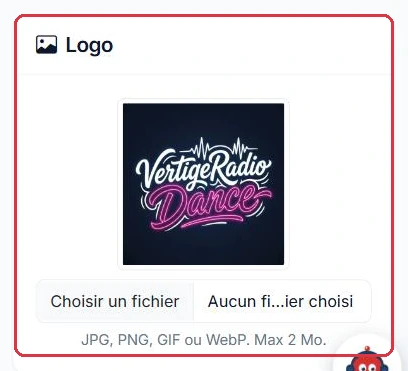
The "Logo" card lets you upload your radio\'s image, with an immediate preview. The constraints are precise:
Two files uploaded in the "Logo" card, two outcomes.
logo-radio-soleil.png, 500 x 500 px, 180 KB: accepted, the preview appears immediately next to the field.affiche-studio.jpg, a photo straight from a camera, 4 MB: rejected with "The logo must not exceed 2 MB." Re-export it at 500 x 500 px before trying again.Why: listening applications display your logo in a square thumbnail. A rectangular image will be cropped, often right across the radio name.
The "Update" button opens a confirmation prompt: "Confirm the update?". The message is clear — applying the changes requires a restart of your radio, and your listeners will experience a brief interruption of a few seconds while the stream reconnects.
After confirming with "Yes, update", the radio restarts automatically within the following minute. Avoid making these changes during a live broadcast or at a peak listening time.
At the very bottom, the collapsed section "Advanced audio settings (optional)" gives access to transitions by content type (Cue Out, Cross, Fade In, Fade Out) and to the "Do not repeat an artist before" and "Do not repeat a track before" delays. The warning on the page is worth heeding: "Only adjust these settings if you know what you are doing."
Radio Soleil needs to change its description, its style and its logo. Three changes, but only one interruption.
Do this during a low-listening period, early in the morning for example, and never during a live broadcast.
Why: each confirmation triggers a restart and a brief interruption of a few seconds. Three separate saves mean three interruptions for your listeners.