A playlist is a rotation: a sequence of rows (tracks, genres, tags, jingles, spots, features, AI presenter) that your radio plays on a loop. This is the content that the "Schedule" page then places on the programme grid.
You access the page via the "Playlists" menu entry in the sidebar.
Without a subscription, the page displays "No radio configured" and invites you to subscribe to a radio plan.
With a subscription but no radio, it displays "Set up my radio".
Until the radio has been installed, it displays "Radio being installed": playlists cannot be edited yet.
Good to know:
The round button with a question mark in the top right corner relaunches the guided tour of the page. It is available both on the list and inside the editor.
The "Playlists" page and its "New Playlist" button. Click to enlarge
Your playlist list
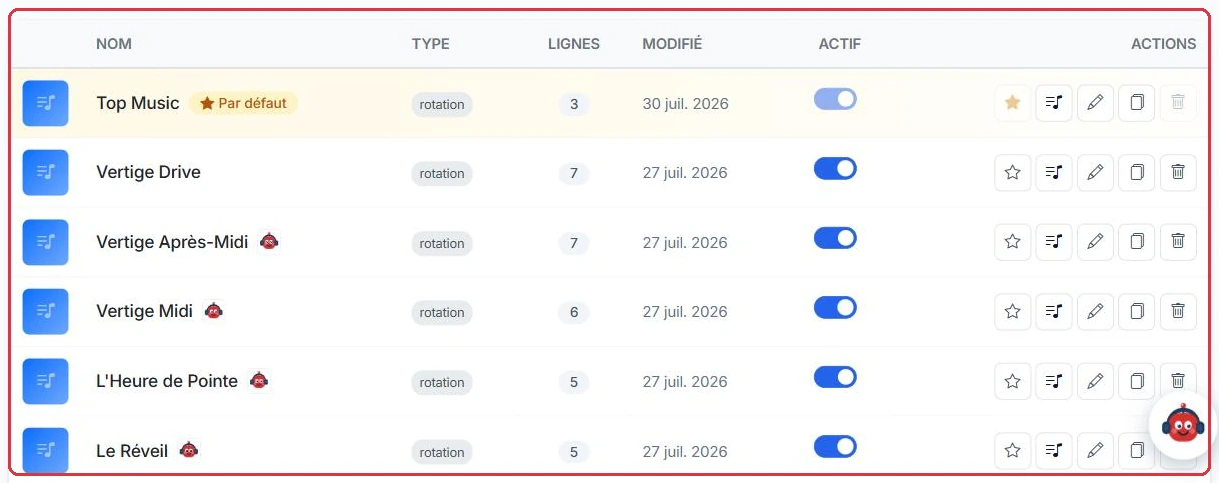
The table displays the columns "Name", "Type", "Rows", "Modified", "Active" and "Actions". The search field at the top filters instantly by name or description.
The "New Playlist" button opens a form with a mandatory "Name", and an optional "Description" and "Cover".
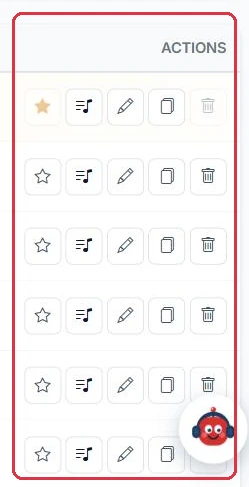
Each row offers 5 actions, in this order:
The star — "Set as default".
The note list — "Edit rotation rows", which opens the playlist editor.
The pencil — "Edit name, description and cover".
The pages — "Duplicate this playlist", which creates a copy with all its rows.
The bin — "Delete".
Good to know:
The cover accepts JPG, PNG and WebP formats. The recommended size is 400 × 400 px.
The list: name, type, number of rows, modification date and "Active" toggle. Click to enlarge The five actions for each row: default, listen, edit, duplicate, delete. Click to enlarge The search bar and the reminder of the radio concerned. Click to enlarge
The default playlist
One playlist carries the "Default" badge: this is the one broadcast as filler whenever nothing is scheduled on the grid. It always appears at the top of the list.
It cannot be deactivated: its "Active" toggle is locked.
It cannot be deleted. To remove it, first designate another playlist as the default.
A VestaRadio logo next to the name indicates a playlist created by the VestaRadio assistant.
Tip:
Keep a broad, long rotation without an AI presenter as your default playlist. It plays whenever there is a gap in the grid: it is best that it consumes no credits and does not become repetitive.
Example
Radio Soleil builds two very different playlists.
"Soleil Background", marked "Default": four genre rows only (Pop, French Variety, Rock, Slow), one station jingle, and no "Presenter" row. It is never placed on the grid.
"Soleil Wake-Up", a slot playlist: show jingles, voice tracks and one "AI Presenter" intervention. It is only broadcast during its 6 a.m. to 9 a.m. slot.
Why: the default playlist only triggers on grid gaps, at times you do not choose. Without an AI presenter in it, a scheduling oversight costs you airtime, never credits.
The "Default" badge and its locked toggle: this playlist can neither be deactivated nor deleted. Click to enlarge
The rotation editor
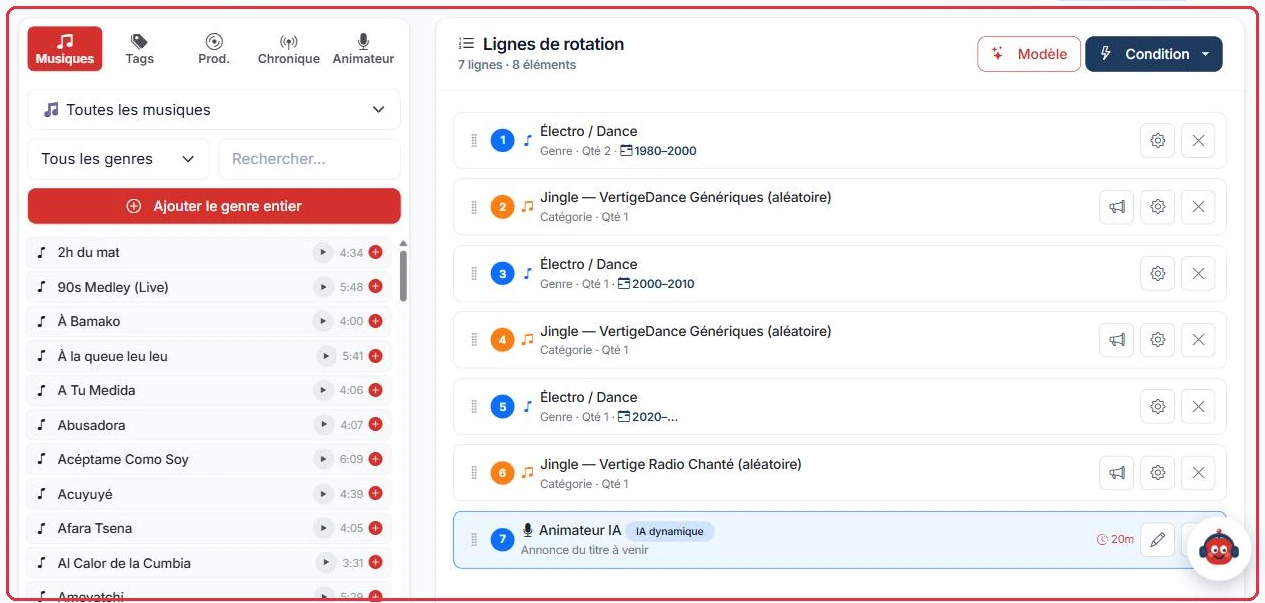
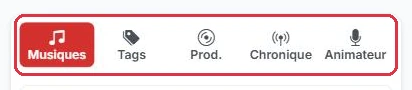
The editor is divided into two columns. On the left, the palette with 5 tabs; on the right, the "Rotation rows".
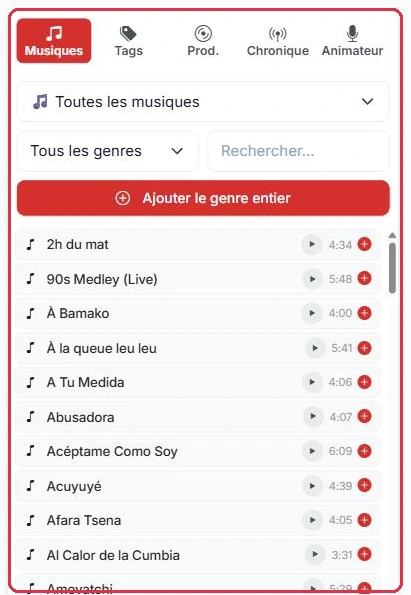
"Music" — the VestaRadio library and your own files. Filters by source, by genre, a search field, and an "Add entire genre" button.
"Tags" — cross-cutting thematic selections. A Tag row draws from all labelled tracks.
"Prod." — your "Spots", "Jingles", "Voice Tracks", "Features" and "Podcasts", with "Add category (random)" and "Create new" buttons.
"Feature" — ready-to-air content delivered automatically (news flash, horoscope…). The latest version is always the one that goes on air.
"Presenter" — the "Add an intervention" button, which inserts an AI presenter into the rotation.
An element is added by dragging it to the right or by clicking the +. Rows are reordered by drag and drop: the rotation loops in that order. The + button between two rows inserts an element at that exact position.
The "Template" button opens "Choose a show template": a quick assistant (show type, presenter voice, music, jingles, PAD to include) that ends with "Insert & check" and leads into the "Rundown analysis" window. It inserts rows into the open playlist without touching the grid.
To build a complete show — its name, days, time, presenter, rundown and slot on the grid — use the show generator instead: the "Create a show" button on the "Schedule" page, described in the Create a show guide. It produces a standard playlist that you will then find here, editable in this editor.
Example
Studio Nova builds its morning show "Nova Wake-Up". Eight rotation rows, in this exact order:
Jingle "Nova Wake-Up"→3 Pop tracks→Voice track "Good morning"→2 French Variety tracks→AI Presenter→3 Pop tracks→Station jingle→2 Rock tracks
Genre rows are added from the "Music" tab using "Add entire genre"; the number of tracks is then set in "Options", field "Quantity to pick each pass" (3 by default, from 1 to 99). Jingles and the voice track come from the "Prod." tab, the intervention from the "Presenter" tab.
Why: a single "Presenter" row, placed in the middle of the loop, leaves five tracks between two speech segments. The rotation stays dressed without becoming too talkative, and credit consumption remains predictable.
Good to know:
A very short file inserted as a music track triggers the alert "Atypical duration for a music track", with a suggestion to classify it under "Jingles". A jingle treated as a music track is subject to song crossfades and becomes inaudible.
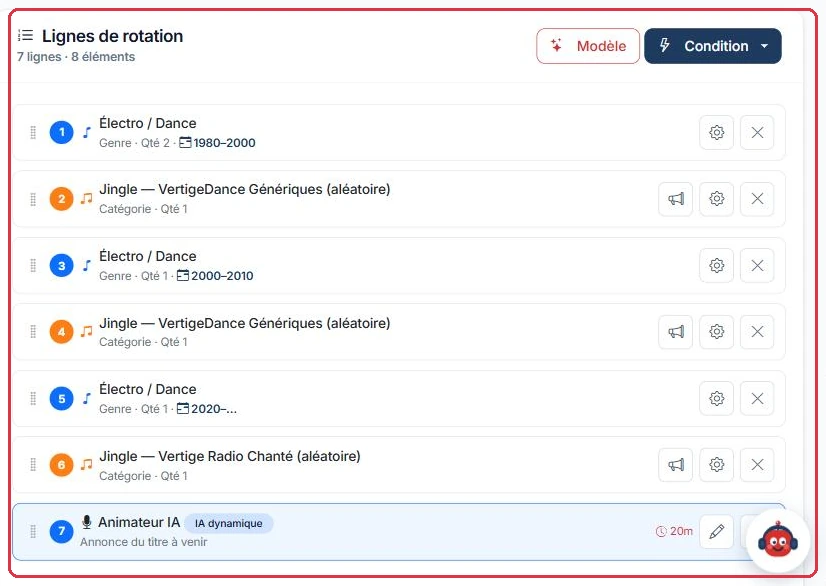
The full editor: the palette on the left, the rotation rows on the right. Click to enlarge The five palette tabs. The fourth is called "Feature", not "PAD". Click to enlarge A real rotation: genre, jingle, genre, jingle, genre, jingle, then the AI presenter at the end of the loop. Click to enlarge The "Music" tab: filter by source, by genre, search and "Add entire genre". Click to enlarge
Conditions
The "Condition" button creates an intelligent row that selects its file at the moment of broadcast. Four types are available:
"Day Condition" — a different file for each day, from "Monday" to "Sunday". A day left empty plays nothing.
"Hour Condition" — one file per time slot: "Morning 6am–12pm", "Afternoon 12pm–6pm", "Evening 6pm–10pm" and "Night 10pm–6am".
"Random Condition" — a random draw from a list, with the "Quantity to pick" field. Include at least two files.
"Date Condition" — one file for "Special dates" (Christmas, New Year, the station\'s anniversary) and a "Default file" for all other times.
Each type has a "Guide" button that explains how it works. In the file selector, you can filter by source ("VestaRadio Music", "My Music", "Spots", "Jingles", "Voice Tracks", "Features", "Podcasts", "PAD") and by genre.
Example
Ambiance FM wants a single general-purpose playlist, but with branding that matches the time of day. It places one single"Hour Condition" row at the top of the rotation and assigns four jingles to it:
"Morning 6am–12pm" → Ambiance FM - Good Morning
"Afternoon 12pm–6pm" → Ambiance FM - Afternoon
"Evening 6pm–10pm" → Ambiance FM - Your Evening
"Night 10pm–6am" → Ambiance FM - Soft Night
Why: one condition row replaces four nearly identical playlists. The same rotation can be placed across the entire grid: it is the broadcast time that selects the right jingle, not you.
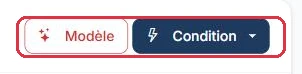
The two tools at the top of the rotation rows: "Template" and the "Condition" menu. Click to enlarge
Configuring a row
The cog icon on a row opens the "Options" window:
"Play only once per slot" — the row keeps its place in the rotation: it plays on the first pass, then does not play again until the end of the slot. When unchecked, it returns on every pass. This is the setting for an opening hook or a daily feature.
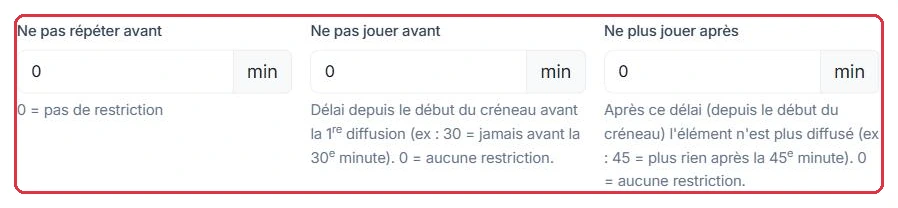
"Do not repeat before" — the minimum delay before the same element can return. 0 = no restriction.
"Do not play before" — the delay from the start of the slot before the first broadcast. For example 30: never before the 30th minute. 0 = no restriction.
"Stop playing after" — once this delay has elapsed, always counted from the start of the slot, the row is no longer broadcast. For example 45: nothing after the 45th minute. 0 = no restriction. Useful for a hook reserved for the beginning of a show.
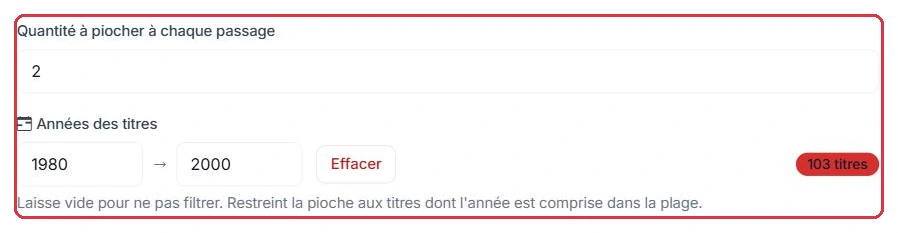
"Quantity to pick each pass" — the number of tracks drawn from the source on each rotation pass.
"Track years" — a filter by year range, with a "Clear" button to remove it. A counter shows the number of matching tracks.
"Broadcast genres & percentages" — tick the genres and set the share for each.
All three delays are expressed in minutes, and 0 means "no restriction" — this is the default value. Do not confuse the last two: "Do not repeat before" is counted from the last time the element played, whereas "Do not play before" and "Stop playing after" are counted from a starting point that depends on your radio\'s scheduling mode.
Good to know — dynamic scheduling:
By default, your radio uses dynamic scheduling: it does not read a fixed list; instead it prepares what comes next in batches of approximately 20 minutes, applying anti-repetition, appointments and advertisements on the fly (this is what "Simulate output" shows). In this mode, "Do not play before" and "Stop playing after" are counted from the start of the batch being prepared, not from the start of the slot: a value beyond fifteen minutes in "Do not play before" will prevent the row from ever playing. Keep these two limits small, and use "Play only once per slot" for content that should mark the start of a show. In static mode (fixed playlist), both limits are counted from the start of the slot.
The three delays in the "Options" window, in minutes: 0 means no restriction. Click to enlarge The quantity picked each pass and the year filter, with its track counter. Click to enlarge
The total of all percentages must equal exactly 100%: the badge turns green when this is the case, and saving is refused otherwise. The "Select all", "Deselect all" and "Balance" (equal distribution) buttons save you time.
Example
On its daytime playlist, Studio Nova sets anti-repetition row by row. All these fields are in minutes.
Row 3 Pop tracks → "Do not repeat before" = 180: the same track cannot return for 3 hours.
Row Station jingle → "Do not repeat before" = 20: at most three plays per hour.
Row Voice track "Welcome" → "Stop playing after" = 15: the hook disappears after the first quarter-hour of the slot.
Row Weather feature → "Do not play before" = 10: never in the first 10 minutes, giving the show time to settle.
Why: without these delays, a short rotation brings back the same jingle every ten minutes and the same track three times in a morning. Be careful not to set "Do not play before" to a value greater than or equal to "Stop playing after": the row would never play.
On jingle and spot rows only, an additional speaker button appears: "Enable an ad (midroll) on this row". Once enabled, the row displays the red "AD" badge and the tooltip changes to "Midroll ad enabled — click to disable"; a second click cancels it. This button does not exist on music, genre or tag rows.
Example
Radio Soleil wants an ad break in the middle of its rotation, at a chosen point.
3 Pop tracks→Jingle "Ad break" — AD badge→3 French Variety tracks
The Ad break jingle is added from the "Prod." tab, then its speaker button is clicked: the red "AD" badge appears on the row, and the tooltip changes to "Midroll ad enabled — click to disable".
Why: the advertisement is inserted at the marked point, immediately after an announcement jingle and never in the middle of a song. There is no point looking for this button on the "3 Pop tracks" row: it only exists on jingles and spots.
Good to know:
The "AD" badge marks the point where an advertisement can be inserted into the rotation. It only takes effect if monetisation for your station has been activated by the VestaRadio team.
The radio\'s anti-repetition rules
The delays above are set row by row. Three additional rules apply across the entire station, regardless of the playlist. They are configured in "Settings" (radio block) or in "Set up my radio":
"Do not repeat an artist before" — minimum delay between two tracks by the same artist, 15 min by default (0 to 480, in steps of 5).
"Do not repeat a track before" — minimum delay between two plays of the same track, 60 min by default (0 to 480).
"Consecutive tracks from the same decade" — maximum number of tracks in a row from the same decade, 2 by default (0 to 6, 0 = no limit). Beyond this, the radio picks a track from a different decade to vary the rotation.
These rules are added on top of your row settings: a "Do not repeat before" of 30 minutes on a genre row does not prevent the station\'s artist rule from applying, and vice versa.
A genre row: the cog opens its options, the cross removes it. Click to enlarge The "AI Presenter" row and its minimum spacing badge, here 20 minutes. Click to enlarge
Simulate, save, broadcast
The "Broadcast" block at the bottom of the editor groups three buttons, preceded by a duration field in minutes (0 = one pass only):
"Simulate output" — displays the "Output simulation" window with the exact sequence that would go on air. The "Regenerate" button draws a new sequence. Nothing is broadcast: this is a preview.
"Save" — saves the rotation. The orange dot next to the "Save" button at the top of the page indicates unsaved changes.
"Go live" — saves and puts the playlist on air immediately. The confirmation lets you choose between "Immediate crossfade" and "Let the current track finish", and reminds you that the programme grid is ignored during a forced broadcast.
Tip:
Always simulate the output before going live. It is the quickest way to spot a jingle that comes back too often or a genre that drowns out the others.
The "Save" button, in the top right corner of the editor. Click to enlarge
Configuring an "AI Presenter" intervention
The "Add an intervention" button on the "Presenter" tab (and the cog on an existing AI Presenter row) opens a window with four tabs:
"When" — "When does the presenter speak?": "Back-announce — the track that just played", "Announce — the upcoming track" and "Announce — an upcoming feature". Tick several types so the presenter varies randomly on each pass. Opening and closing are handled automatically: the first presenter row in the playlist becomes the opening, the last becomes the closing.
"Voice & sound" — "Voice", "Intonation" ("Standard" by default), "Background sound" ("No background sound" by default), "BG vol." (0.15 by default) and "Duration (s)" (12 by default, from 5 to 40).
"Content" — the "Block type": "Auto — music announcement" (opening, back-announce, upcoming track or closing depending on position), "Today\'s weather", "Today\'s news", "On this day" or "Free topic"; the "Text style / tone" ("Warm & friendly (default)", "Fun, young & energetic", "Professional, neutral & elegant", "Friendly local presenter", "Mellow / lounge (evening)", "Classic & composed radio"); the "Show topic / running theme"; for a weather, news or on-this-day block, "Also announce a track?" and the "Search for up-to-date information online" toggle (essential for current data); and finally "Progressive dossier on the topic" (the AI searches for up-to-date information and delivers it progressively throughout the slot\'s interventions: opening, updates, conclusion) and "Add a recent piece of news about the artist (web search)".
"Settings" — "Play only once" (the intervention is broadcast only once per airing, ideal for the opening or closing), "Say the playlist name on air" (ticked by default: the presenter can name the show, especially at the opening and closing), "Do not repeat before (min)", "Do not play before (min)", "Stop playing after (min)" and a "Label (display)".
The topics covered by the presenter between two tracks come from your radio\'s "Station angles" library (menu "Production" > "AI Presenter"), described in the Station angles guide.
Tip:
An "Auto" row with all three types ticked under "When" is enough to dress a music playlist. Reserve "Today\'s weather" and "Today\'s news" for a row with "Play only once" ticked, or better still for an appointment on the "Schedule" page: a weather report that replays on every rotation pass is costly and becomes tiresome.
AI Presenter: the credits alert
If the playlist contains at least one "AI Presenter" intervention, saving displays the "Warning — credit consumption" window before confirming.
Each intervention is regenerated on every broadcast to stay current: it is therefore charged each time.
The window estimates the number of credits consumed per 1 hour of broadcast and the corresponding number of interventions.
You must click "I understand, save" to proceed.
The longer or more frequently the playlist is scheduled on the grid, the higher the consumption.
Example
Studio Nova adds an intervention to its morning show and wants to know what it costs.
"Voice & sound" tab, "Duration (s)" field = 12, the default value (adjustable from 5 to 40 s). The cost is counted per 3-second increment, i.e. ≈ 4 credits per intervention.
"Settings" tab, "Do not repeat before" field = 20 minutes → the intervention plays 4 times per hour, i.e. ≈ 16 credits per hour of broadcast.
If the "Content" tab is set to "Today\'s weather", "Today\'s news" or "On this day", the web search adds 1 credit per search actually performed, up to 5 per intervention — most often just one: the same hour comes to ≈ 20 credits.
This slot is then scheduled from 6 a.m. to 9 a.m. Monday to Friday: count ≈ 48 credits per morning, i.e. ≈ 240 credits per week.
Why: it is the "Do not repeat before" field that drives the bill, not the length of the playlist. Changing it from 20 to 30 minutes brings the intervention down to 3 plays per hour.
Good to know:
Web searches are charged per search, not per intervention: 1 credit per search, up to 5 per intervention. The "Progressive dossier on the topic" and "Add a recent piece of news about the artist (web search)" options also trigger searches, and therefore additional credits on top of the voice cost. To test a show structure without spending credits, choose "VestaRadio voice tracks" rather than "Dynamic AI presenter" in the "Template" assistant.
Deleting a playlist
Deletion requires confirmation. If the playlist is used by the programme grid, a second message lists the affected slots and warns that they will be removed from the grid.
After deletion, a notification indicates the number of slots removed from the schedule.
These slots are not replaced: the corresponding time blocks become empty again and fall back to the default playlist.
The default playlist can never be deleted directly.
Tip:
Before deleting, duplicate the playlist and reschedule the slots on the copy. This will prevent gaps in the grid.