Audio editing allows you to assemble several of your productions into a single MP3 track: a compilation, a best-of, a chained ident sequence, and more.
You will find this tool in the Tools > Audio Editing menu. It requires the "audio-editing" permission. From the editing list, the "New Edit" button opens the editor.

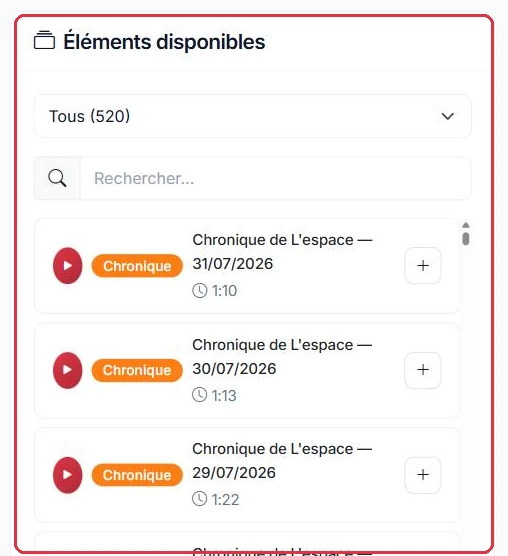
In the left-hand column, "Available Elements" lists all your productions. A type filter lets you display: "All", "Spots", "Jingles", "Voice Tracks", "Features", "Podcasts" or "My Files". A search field and a preview (play) button complete the column.
To add an element to the timeline, use the "+" button or double-click on it.
Studio Nova is preparing the trailer for its new feature and brings together three already-produced elements.
ouverture → preview → double-click on "Opening Jingle".fin → double-click on "Closing Jingle".Why: previewing before adding avoids including the wrong version of a jingle. Two files with nearly identical names are easily confused in the list.
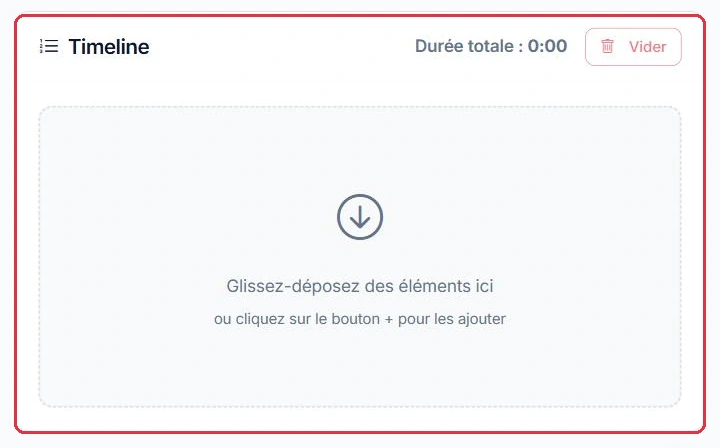
The timeline displays elements in broadcast order. You can:
The total duration of the compilation is calculated and displayed in real time as you add elements.
Studio Nova\'s trailer consists of three blocks, in this order.
The full feature was added first by mistake: a drag and drop moves it back to the middle, and the displayed total duration drops to around 40 seconds.
Why: keep an eye on this counter while editing. A trailer longer than one minute will not fit into a schedule, and you will only realise too late if you wait until export.
Click "Generate MP3" to start processing: you will be redirected to a progress page (see the "Exports" tutorial).
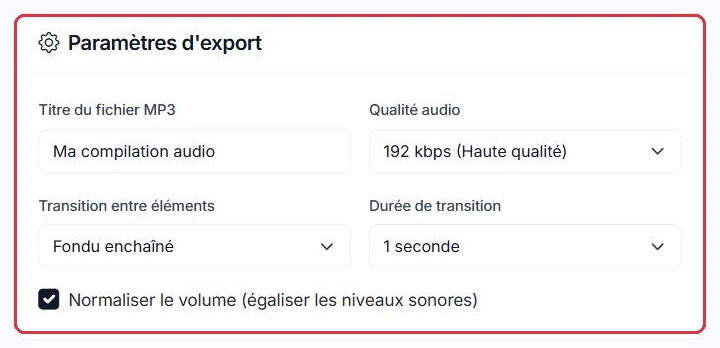
Studio Nova configures the export of its trailer, intended for broadcast and social media.
Bande-annonce Le conseil jardin.Why: 256 kbps provides a quality margin for a file that will be re-encoded by platforms, without going all the way to 320. And with three short blocks, a 1-second crossfade would eat into the end of the opening jingle: 0.5 seconds is enough to blend without cutting.
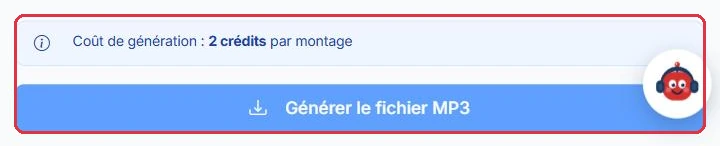
The interface shows "2 credits per edit". As a reminder, AI credits are used for generation only (1 credit ≈ 3 seconds), while broadcasting remains free. For full details on how credits work, refer to the "AI Credits" tutorial.
Studio Nova\'s trailer is charged at 2 credits, exactly the same as a 30-minute best-of assembling twenty elements.
However, each export re-launched after correcting the timeline costs another 2 credits.
Why: the cost depends neither on the number of elements nor on the final duration, but on the number of exports. Check the order and total duration before clicking "Generate MP3", not after.