
Balance the voice, background sound and silences
When you create a production, the platform assembles two elements: the voice generated by the AI and, if you have chosen one, the background sound. The audio settings give you control over this assembly: the volume for each element, and how much silence to add before and after the voice.
You will find them in two places:
On the creation pages for "Spots", "Jingles" and "Voice Tracks" (under the "Production" menu), an "Advanced settings" block is available below the form.
Radio Soleil is producing its very first jingle. The right approach: don\'t open anything.
The values applied are then 100 % voice, 15 % background, 1.0s intro and 1.0s outro.
Why: adjusting settings blindly before hearing anything wastes credits. Corrections made in the editor, on the other hand, are free.
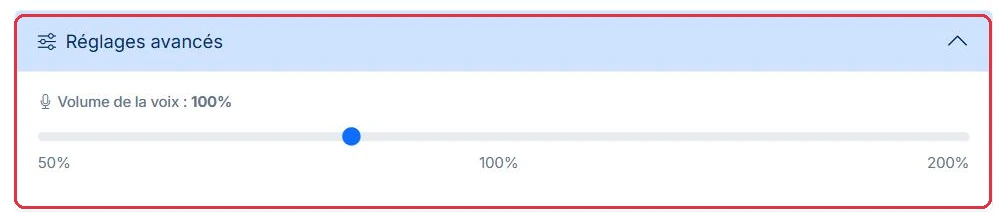
This slider is always visible in the accordion, with or without a background sound.
Lower it if the voice is overpowering your music, raise it if it sounds too recessed. Beyond 150 %, the result can become harsh: always check by listening.
Studio Nova produces two items on the same day: a punchy jingle and a calm feature. Only this slider changes.
120 %.100 %, the default value.Why: in a jingle, the voice needs to cut through music that is intentionally prominent. In a feature, the voice is already front and centre: raising it would only make it harsher.

This block only appears if a background sound is selected in your production. Without a background, there is nothing to balance: the section remains hidden.
The first setting is "Background volume":
15 % is intentionally subtle: the music should support the voice, not compete with it. Raise it towards 25–30 % for a jingle where the music carries the energy, and lower it towards 10 % for a long, speech-heavy message.
Studio Nova revisits its two productions and balances the music under the voice.
30 %, Voice volume 120 %.10 %, Voice volume 100 %.Why: a jingle lasting a few seconds is remembered for its music; a two-minute feature is followed for its words. At 30 % on a feature, listeners will tune out after thirty seconds.

These two settings, side by side under "Background sound options", define the voice-free silences at the beginning and end of the production. The background sound plays throughout these moments.
Note the unit: these values are expressed in seconds, and displayed as such ("1.0s"). They are not milliseconds. Setting 5 therefore adds a full five seconds of music, not five milliseconds.
The same two productions, with contrasting silences.
0.0s, Outro 0.5s: the music and voice start together — instant impact.2.0s, Outro 3.0s: the music settles in, then fades out gently.For a 30-second advertiser spot, an intro of 2.0s and an outro of 2.0s use up 4 seconds: the spoken text must therefore not exceed 26 seconds.
Why: a jingle that opens with two seconds of music alone loses all its punch, whereas a feature that cuts off abruptly sounds like a technical fault.

The background sound is never cut abruptly: the platform automatically applies a fade-in at the beginning and a fade-out at the end, to avoid harsh starts and sudden cuts.
The fade-out is aligned with the end of the voice, so that the music dies away cleanly once the message is finished. If the chosen background is shorter than the production, it is looped as many times as necessary.
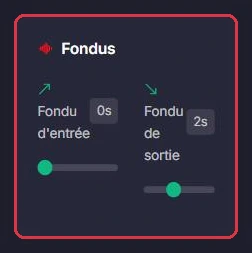
You can adjust these fades yourself in the audio editor, using the "Fade-in" and "Fade-out" sliders, from 0 to 5 seconds in steps of 0.5 seconds. When the editor opens, they are set to 0 s for the fade-in and 2 s for the fade-out.
In the audio editor, Studio Nova finalises its two productions with the fades.
0 s (the opening value), Fade-out 0.5 s.1.5 s, Fade-out 3 s.Why: the 2 s fade-out set when the editor opens suits most cases, but it swallows the final note of a short jingle. Bring it down to 0.5 s whenever the production is under ten seconds long.
Once the production has been generated, open its details page and click the "Editor" button. You arrive at a two-track workspace: "Background sound" at the top, "Voice" below, each with its waveform and duration.
The available settings are grouped into cards:
You can also change the background sound using the "Change" button on the track, and remove a section of the voice: click and drag on the waveform to select a region, then use "Delete" in the selection bar.
Ambiance FM has generated a 2-minute feature: the text is perfect, but the music is drowning out the voice. No need to regenerate.
The "Voice" slider stays at 100 %: only the background is lowered, from 15 % to 8 %. "Preview" plays the actual mix, "Original" lets you re-listen to the starting point. Confirm "Save changes?".
Why: the text has already been paid for. Relaunching the generation would spend more AI credits on a problem that a single slider can fix, and you would lose the take you liked.


This is the key distinction to remember.
In other words: if the text is right but the result does not sound the way you want, do not relaunch the generation. Open the editor, make your corrections, click "Save" and confirm "Save changes?". You can return to the editor as many times as you like.
Ambiance FM finishes polishing its feature in three editor sessions on the same day.
Achieving the same result by regenerating the feature three times would have cost three voice generations, at roughly 1 credit per 3 seconds of audio.
Why: credits pay for the creation of the voice, not for reworking files that have already been created. As long as the text does not change, the editor is all you need.
