The mobile application is the "phone" version of your radio station: live listening that does not cut out while browsing, news, programme schedule, team, events, podcasts, dedications and contact. You will find it in the "Web Broadcasting" > "Application" menu.
It is powered by exactly the same data as your Radio Website: no synchronisation to trigger, no double entry. Whatever you change on one side appears on the other.
Access: two options activate your application — "Radio Website", which includes it, or "Mobile Application", the app alone without a website (see the "Subscription" tab below). Without an option, a free 7-day trial is available (button "Try free for 7 days", no credit card required); once it ends, "Add the option to my plan" leads to the subscription.
If you have a station hosted at VestaRadio, your application profile is created automatically along with the Radio Website. If your radio is hosted elsewhere (account without a hosted station), the page still works: a standalone "My Radio" profile is created, and you enter your stream URL in the "Radio(s)" tab.
If you manage several radio stations, a drop-down menu at the top of the page lets you select the relevant station.
Good to know:
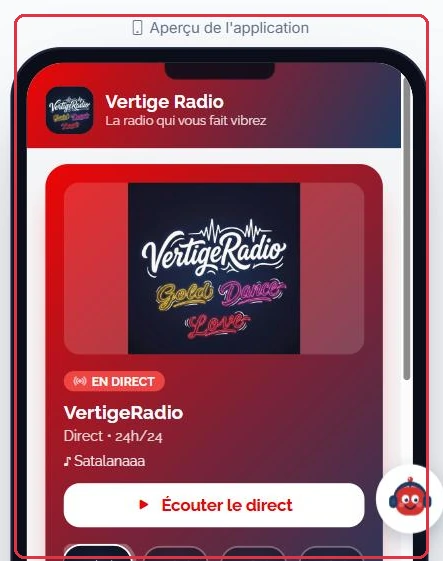
The preview on the right side of the page is not a simulation: it is the actual rendering of your application, inside a phone frame. The "Refresh preview" button reloads it after a change.
Example
Vibe FM opens its app and sees exactly what a listener sees: a tab bar at the bottom of the screen, showing only the sections that have already been filled in.
Home→Schedule→News→Podcasts→Dedications→Info
The station has no events yet: the "Events" tab simply does not appear. The day it publishes one through the Radio Website, the tab will add itself automatically.
Why it matters: on the website, the listener changes page and the player reloads; in the app, they switch between tabs without the live stream stopping. That is the real difference for them, not the content.
The live preview of your application, on the right side of the screen Click to enlarge
"Application" tab: activating and sharing the link
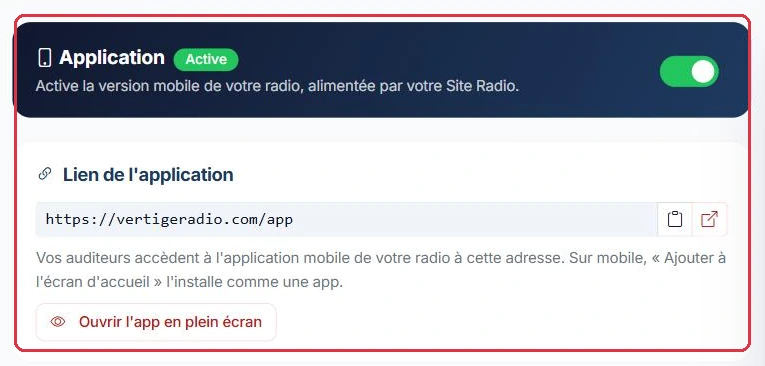
The large toggle at the top activates the mobile version of your radio station. The badge switches from "Disabled" to "Active", and the change is saved immediately.
Once the app is active, the "Application link" block displays its public address, which can be copied with a single click. It always ends with /app: it is your Radio Website address followed by /app.
The link exists as soon as the application is active, regardless of whether the Radio Website has been published. If it is missing, your radio does not yet have a subdomain ("Address unavailable: your radio does not yet have a subdomain"): choose one in the "Domain name" tab of the Radio Website, or in the "Your application address" block below if you only have the app.
On a phone, your listeners can use "Add to Home Screen": the app then installs like a real application, without going through a store.
The "Open app in full screen" button shows you the result, even before publishing.
The "On Google Play & the App Store" block displays the progress of your native application: "To be processed", "Being built", "Submitted to stores", "Published" or "Awaiting your feedback". Until it is live, it reminds you that publication is handled by our team and that download links will appear here.
The "Application content" block counts what is already online: "News", "Programmes", "Events", "Team".
If your account has the "Mobile Application" option without the Radio Website, three additional blocks are displayed:
"Your application address": the subdomain (letters and numbers, 3 to 63 characters), to be confirmed with "Confirm". Only the /app address is public; the root of the site remains closed until you add the Radio Website option.
"Your radio audio stream": as long as no stream is entered, "Your application does not yet have any audio" — enter the Icecast, Shoutcast or your current host\'s address in the "Radio(s)" tab.
"Store publication": if the publication fee has not been paid, the block reminds you that the app can be installed from its web address and that publishing on Google Play and the App Store costs €150 as a one-time fee (included with an annual subscription), which can be requested through support.
Tip:
This link is perfect for a QR code on air, in a story or on your flyers: one scan, and the radio is on the phone\'s home screen.
Example
Radio Soleil is not on the stores yet but wants its listeners to install the app this week.
Toggle set to "Active"→Subdomain chosen→Copy radiosoleil.fr/app→QR code shared on social media
The message announced on air, three times a day: "Open radiosoleil.fr/app on your phone, then tap 'Add to Home Screen'. The radio installs like a real app, with nothing to download."
Why it works: the /app link is live as soon as the toggle is set to "Active" and the radio has a subdomain: home screen installation makes the stores optional.
The activation toggle and the public link of the application Click to enlarge
"Identity & appearance" tab: what is specific to the app
This is the only place where the application truly differs from the website.
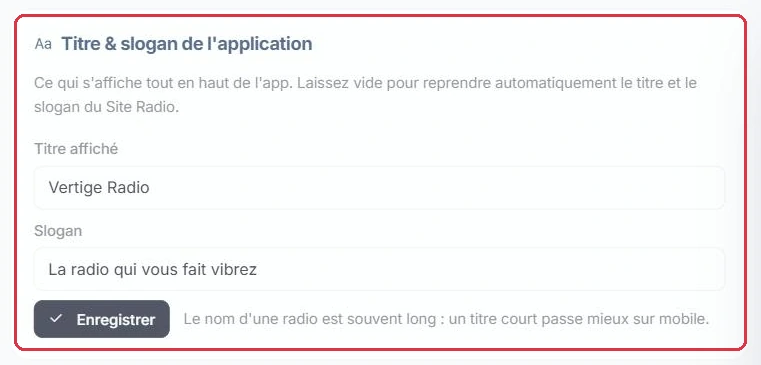
"Display title" and "Tagline": if left empty, they automatically inherit those of the Radio Website. A short title works better on mobile.
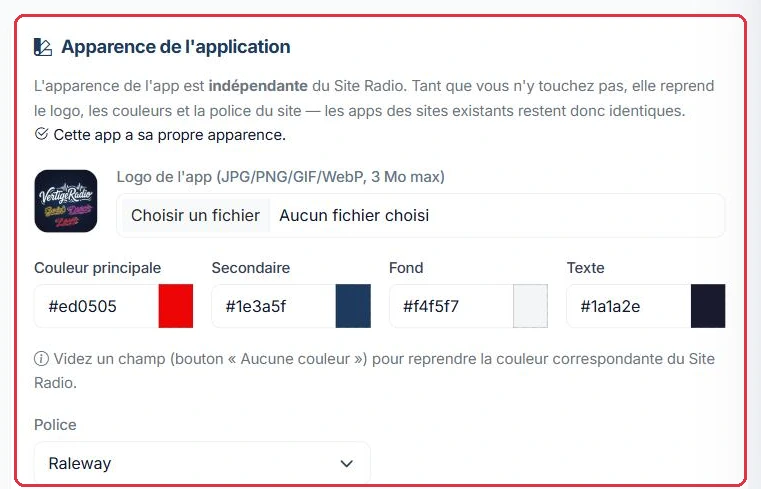
"App logo": JPG, PNG, GIF or WebP, 3 MB maximum. The "Use the Radio Website logo" checkbox cancels the dedicated logo.
"Application icon": the square that appears on the phone\'s home screen, in the stores and in the browser tab — different from the logo, which can be wide. PNG, JPG or WEBP, square, ideally 1024 × 1024 px and 512 px minimum, with no unnecessary padding around the artwork. Dimensions are checked as soon as the file is selected ("too small", "is not square", "perfect"). The "Remove icon (use logo instead)" checkbox reverts to the logo.
The four colours — "Primary colour", "Secondary", "Background", "Text" — and the "Font".
Clear a colour field with the "No colour" button to inherit the website\'s colour.
The "Use website appearance" button resets everything at once.
Good to know:
As long as you change nothing, the app is a visual mirror of the website. As soon as a single setting is customised, the notice "This app has its own appearance" is displayed.
Example
Vibe FM\'s website is light-themed, but the app is mostly used in the evening: the station switches it to dark mode. Three fields are enough.
"Display title": Vibe FM — short, it does not get cut off on a phone screen.
"Tagline": left empty, it automatically inherits the one from the website.
"Background": very dark grey. "Text": white. The other two colours are cleared with "No colour" to keep the website\'s values.
The notice "This app has its own appearance" then appears. A click on "Use website appearance" cancels everything if the result is not satisfactory.
Why it matters: this is the only tab where you work on the "app" side. Everything else — texts, articles, schedule — is set once, on the Radio Website side.
The title and tagline displayed at the top of the app Click to enlarge Logo, colours and font specific to the application Click to enlarge
"Content" and "Radio(s)" tabs: shared with the Radio Website
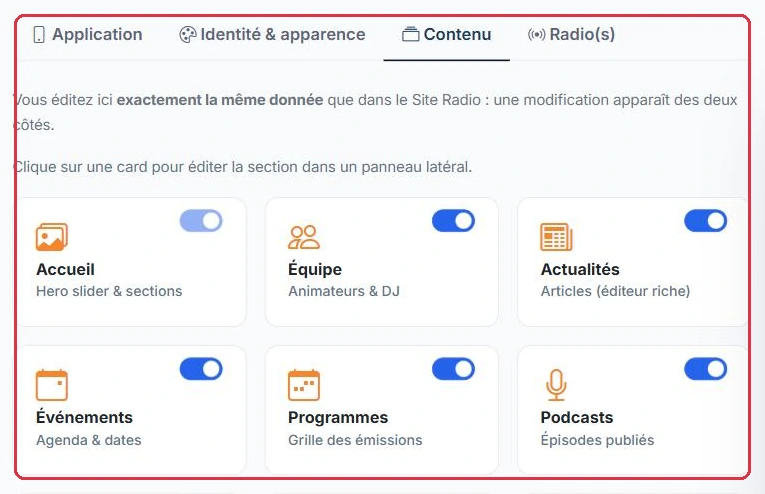
The "Content" tab contains the same cards as the Radio Website — "Home", "Team", "News", "Events", "Programmes", "Podcasts", "Videos", "Contact", "Partners", "Social networks", "Dedications", "Alert banner", "Pages & legal". You edit the same data here: a change appears on both sides, and the toggles activate or hide pages everywhere at once.
The home page carousel and the free sections of the builder (text, image, video, HTML code, image carousel, social networks…) are also rendered in the application, in the same order and position, in a single-column format. Two toggles in the "Home" panel control the carousel separately: "Show carousel on the website" and "Show carousel in the application". Only "Module preview" sections are not carried over: the app already has a dedicated tab for each module.
The "Radio(s)" tab contains the "Radio stream (stream URL)" and, if your account manages several stations, the "Multi-station selector". The order defined here is the order of logos in the application and in the website selector: the first station in the list is the one that plays by default.
Good to know:
You therefore do not set up your content twice. The only setting to think about on the "app" side is the one in the "Identity & appearance" tab.
Example
Ambiance FM announces a concert for the music festival. It enters it just once.
"Content" tab→"News" card→Article saved→"News" page on the website→"News" tab in the app
The same day, it turns off the toggle for the "Videos" card, as there is no content: the section disappears from the website menu and from the app tabs, without deleting anything.
Why it matters: it is the same data, not a copy. Looking for a sync button, or re-entering the article on the app side, is wasted time.
The tabs and content cards, shared between the Radio Website and the app Click to enlarge
"Notifications" tab: alerting your listeners
This tab sends push notifications to the phones of listeners who have installed your native application and agreed to receive them: new show, event, podcast… Each notification has a title, a message, optional detailed content, a target (a piece of content in the app or a link) and a delivery mode — "Immediate", "Scheduled" or "Recurring".
The full workflow — creation, targets, scheduling, image, open tracking, who receives what — is detailed in the "Push notifications" guide.
"Subscription" tab: the app alone, without a website
This tab only appears for accounts without a VestaRadio hosted station (radio hosted elsewhere), with the badge "to choose" as long as no plan has been selected. It offers the "Mobile Application" option on its own: you keep your current stream and hosting, we provide only the app. If you have a station hosted with us, the option is managed from the "Subscription" page of your account, alongside the rest of your plan — the tab redirects you there ("View my subscription").
"Monthly": €49/month, no commitment, cancellable at any time.
"Annual": €490/year ("2 months free"), with store publication included.
The "Publish my application on Google Play and the App Store" checkbox adds €150, once only: submission, store listing visuals and certification follow-up by our team. Without this option, the application remains accessible from its web address and can be installed from the browser.
The "Amount due today" block shows the total (monthly + store fees, or annual alone), then "Order my application" opens the secure Stripe payment; the invoice is sent automatically.
Once subscribed, the tab displays "Your subscription" (plan, next renewal date, store fee status) and, on the monthly plan, an "Switch to annual" block: the change takes effect immediately and Stripe only charges the pro-rata difference.
Good to know:
During the free trial, the tab shows "Your free trial ends in n day(s)": choose a plan before it expires to keep your application online.
"Stores" tab: App Store and Google Play
This tab only appears if your native application is already published on the stores. It then shows the badge "online" and displays the heading "Your application is published".
An important point, to avoid any unnecessary searching: the "App Store" (iPhone and iPad) and "Google Play" (Android) links are filled in by the VestaRadio team at the time of store publication. There is no field for you to enter them yourself in your dashboard.
What you need to do on your side:
Nothing to create the links: they appear automatically as soon as publication is complete.
Once the tab is visible, copy each link using the copy button and share it: on air, on your social media and in your newsletters.
Check that each link opens correctly using the open button next to it.
If you want a native application on the stores and the tab does not appear: tick the publication option in the "Subscription" tab (app only) or contact us through support (VestaRadio hosted station). The publication fee is €150, once only, included with an annual subscription. Progress can then be tracked in the "On Google Play & the App Store" block of the "Application" tab.
The tab also contains the "Application name rights" block (badge "To provide" then "Provided"): Apple sometimes asks you to prove that the name of your application belongs to you. Download the pre-filled declaration ("Download the pre-filled declaration"), date it, sign it, stamp it, then re-upload it (PDF, JPEG or PNG, 10 MB maximum). Prepared in advance, it allows you to respond to App Review in a few minutes rather than several days.
Good to know:
These same links are also displayed in the "Info" tab of your web application: listeners who arrive via the /app link can therefore find the downloadable version on their own.
Example
Studio Nova has just been published on both stores. The "Stores" tab appears with the "online" badge.
Copy the App Store link→Copy the Google Play link→Test both links→Announce on air + social media
Why it matters: there is nothing to enter, only to share. And since both links are already shown in the "Info" tab of the web app, a listener who arrives via /app finds the store version without any explanation needed.