Radio Manager

No credit card required

Back to the guide Guide

Voice-tracks

The spoken segments that bring your playlists to life

What is a voice-track?

A voice-track is a spoken segment placed between two songs, just as a live presenter would do: song introduction, transition, traffic or weather update, show announcement. It is what gives your station warmth and personality between tracks.

This feature requires the "voice-tracks" permission.

Where to find voice-tracks?

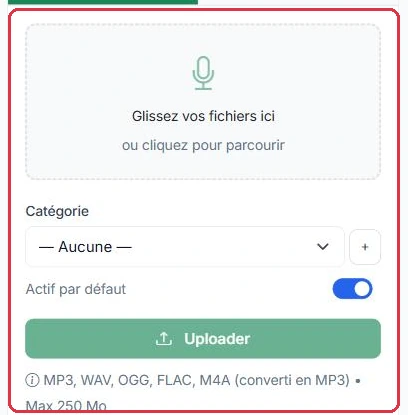
Go to the Production > Voice tracks menu. The "My voice tracks" page lists your recorded segments, ready to be inserted into your playlists, with a two-tab panel at the top: "Upload" to import your own recordings, and "AI Creation" to generate one.

The "Order professional voices" button, in the top right corner, opens the "Jingle Radio" page: station imaging produced by the VestaRadio studio, delivered within 48 working hours (see the Jingle Radio guide). This is the "pro" alternative to AI creation.


The "Voice Tracks" page, in the "Production" menu.
The "Voice Tracks" page, in the "Production" menu. Click to enlarge
The filter bar: search, status and category.
The filter bar: search, status and category. Click to enlarge

Creating a voice-track

Start the creation process to open the form. Fill in:

  • "Title" (required): an internal name to help you find it later.
  • "Voice" (required): the synthetic voice, selected in the side panel (offcanvas).
  • "Intonation": "Standard" by default.
  • "Background sound": "No background sound" by default.
  • Advanced settings: voice volume (50 to 200%), intro and outro silences (0 to 5000 ms), background sound volume (5 to 50%).
  • "Text" (required): the spoken content to be read, entered in the text area.
The two entry points: "Upload" for your recordings, "AI Creation" to generate one.
The two entry points: "Upload" for your recordings, "AI Creation" to generate one. Click to enlarge
The "Upload" tab: file upload, category and accepted formats.
The "Upload" tab: file upload, category and accepted formats. Click to enlarge

Writing the script with the AI assistant

Click "Generate with AI" to open the script assistance modal. Fill in:

  • "Type of segment": Song introduction, Transition, Traffic/weather update, or Show promo.
  • "Context" (optional): useful details (track name, artist name, show name, etc.).
  • "Tone": Dynamic, Relaxed, or Warm.

The AI suggests a suitable script, which you can adjust. Then launch production with "Generate voice track".

Result, playback and download

Each generation produces two versions: "Voice only" and "With background sound".

  • Download them with "Download ZIP".
  • Listen and fine-tune the result with "Edit production".
  • If you change the text, voice, intonation or background sound, regenerate with "Regenerate".
Tip: Do not confuse voice-tracks with the "AI Presenter". Voice-tracks are segments you write and place manually; the AI Presenter generates automatic, dynamic segments directly within your playlists (see the dedicated tutorial).

Your voice track list

The table displays, for each voice track, its artwork thumbnail, the "Title", the "Category", the "Voice", the "Duration", the "Status" (active / draft toggle) and the "Date". Each column can be sorted by clicking its header. Two quick-listen buttons are available at the start of each row: "Mix" (with background sound) and "Voice" (voice only).

  • Click the category on a row to change it or create a new one directly.
  • End-of-row actions: "Download" (the ZIP of both versions), "Edit title and artwork", "View" and "Delete".
  • Select multiple rows (or the header checkbox) to reveal bulk actions: "Category" (add, remove or replace the category for the entire selection, or assign the same artwork to it) and "Delete".

The artwork is the image displayed next to the title in the radio player when the voice track is on air. Without artwork, the category image and then the station logo are used as fallbacks. Accepted formats: JPG, PNG or WEBP, maximum 5 MB. It can also be set from the voice track\'s detail page, in the "Artwork" block, using "Add an image" / "Change image" and "Remove".
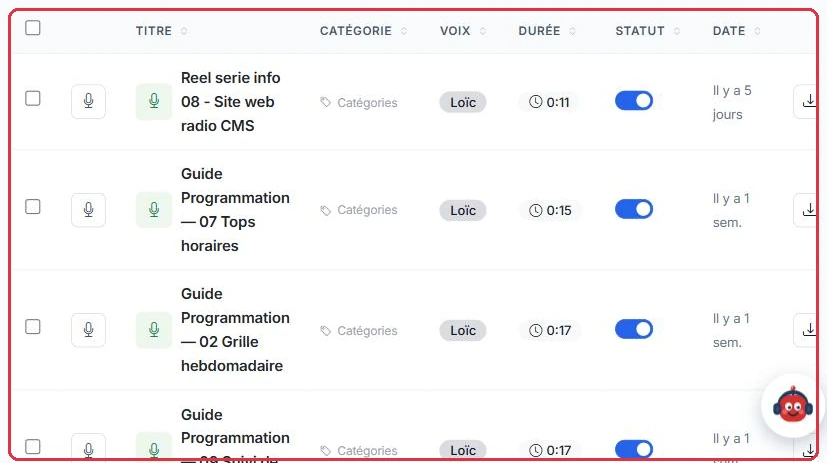
The list: title, category, voice, duration, status, age and download button.
The list: title, category, voice, duration, status, age and download button. Click to enlarge

Credits

1 credit = 3 seconds of audio. While typing, the "Estimate: X credits" is calculated by rounding up the number of words divided by 2.5, then dividing the resulting seconds by 3. The actual speech rate is applied at generation time, based on the final duration.

AI creation requires an active subscription or a credit balance greater than zero; otherwise you will be redirected to the pricing page.