This page allows you to have audio advertising broadcast on your station through the VestaRadio network, then to track and withdraw the earnings generated.
You will find it in the sidebar, under the "Monetisation" entry. The page is titled "My Advertising Revenue".
Good to know:
This is a sensitive financial section: it is reserved for the main account. A sub-user who attempts to access it is redirected to the dashboard. The help button in the top right corner restarts the guided tour of the page.
How the network works
As long as none of your stations are monetised, the page presents the process in three steps:
An advertising tag is installed — audio spots (pre-roll and mid-roll) are automatically inserted into your stream, without interrupting your music programming.
You receive a share of the revenue — each advertisement broadcast on your station generates revenue, a portion of which is credited to your balance and detailed entry by entry in your history.
Your earnings are paid out to you — earnings are credited each month, then withdrawn at your request.
You have nothing to manage: the commercialisation, broadcast of spots, and payment are all handled by the team.
Example
Here is the complete journey of an earning at Radio Soleil, from the first spot broadcast to its use.
Tag placed on the stream→Spots broadcast on air→Earnings credited each month→"Available Balance"→"Request a Withdrawal"
In between, there is nothing to do on the studio side: the music programming continues, spots are inserted automatically, and each credit appears with a date in "Latest Earnings" along with its period and the station concerned.
Why: earnings never disappear on their own. They accumulate in your balance, and it is you who trigger the withdrawal whenever you choose — giving you full control over the timing and method.
Good to know:
The terms applicable to your station, including your revenue share, are communicated by the VestaRadio team at the time of activation. They are assessed on a case-by-case basis.
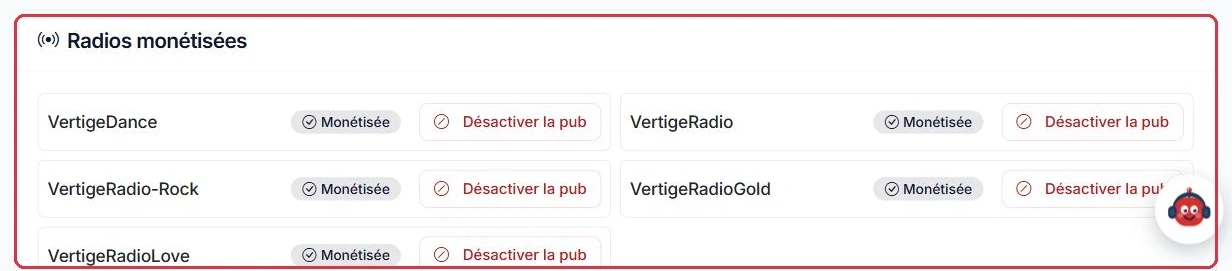
The list of your monetised stations, with the button to disable advertising Click to enlarge
Requesting activation
The "Request monetisation activation" block contains a short form:
"Station to monetise" — the dropdown menu of your stations;
"Message (optional)" — up to 500 characters, to specify your estimated audience or ask a question;
the "Request activation" button.
The note "No commitment — response within 48 hours" accompanies the form. Once the request has been submitted, the block displays "Request being processed".
Two blocking prerequisites:
an active subscription is required; otherwise the block displays "An active subscription is required" with a "View plans" link;
you must have at least one station on the account.
Example
Studio Nova, with an active subscription and a single station, fills in the form in two minutes.
"Station to monetise" → Studio Nova.
"Message (optional)" → "General-interest station, 24/7 broadcast, stable average audience for six months. Peak listening between 7 am and 9 am. We would like to avoid interruptions during the morning news."
Then "Request activation" — the block switches to "Request being processed", with a response within 48 hours.
Why: the message is optional, but 500 well-used characters can save a back-and-forth. Your audience time slots and broadcast constraints are exactly what the team needs to know before configuring the tag. And since only one request can be pending at a time, it is worth making it complete from the outset.
Good to know:
You can only have one activation request pending at a time. To monetise an additional station afterwards, use the "Monetise another station" block.
The banner that appears as soon as earnings are available Click to enlarge
The earnings dashboard
As soon as a station is monetised, the page becomes a financial dashboard:
three summary cards: "Available Balance", "Total Earnings" and "Already Paid Out", the last of which indicates, where applicable, the amount "pending" and amounts "deducted (services)";
a withdrawal block showing your progress towards the threshold;
"Monetised Stations" — the list of your active stations, each with a "Disable advertising" button;
"Deductions from your balance" — a dated breakdown of amounts deducted from your balance, with their reason;
"Latest Earnings" — the last 30 entries, with the period, station and earning.
At the top of the page, two buttons: "My Documents", which opens the space for uploading your supporting documents, and "Request a Withdrawal". The latter remains disabled until the threshold is reached or a request is already in progress.
Tip:
The "Disable advertising" button stops spot broadcasting within moments on the chosen station. Your settings are retained: you can reactivate later without going through the full process again.
Available balance, total earnings and amount already paid out Click to enlarge
The minimum withdrawal threshold
Withdrawal is only possible from €50 of available balance. Below this, the "Withdrawal threshold: €50.00" block displays a progress bar, your current balance and the amount still needed.
Only one withdrawal request can be in progress at a time. While it is being processed, the page displays "Request being processed" and the button remains inactive.
Example
Ambiance FM has been monetised for a short time. The "Request a Withdrawal" button remains greyed out, and the "Withdrawal threshold: €50.00" block shows an incomplete bar with the amount still to be reached.
Balance below threshold→Button greyed out→€50 threshold reached→Withdrawal available
There is nothing to do during this period: earnings continue to accumulate, and the button activates automatically as soon as the threshold is crossed.
Why: use this time to prepare for what comes next. If you are aiming for a bank transfer, this is the moment to complete your client profile and upload your supporting documents in "My Documents": by the time the threshold is crossed, all that remains is to attach the invoice. If you prefer Studio Credits, there is nothing to prepare — the conversion is immediate.
The amount to withdraw, with the minimum and maximum permitted Click to enlarge
The two withdrawal methods
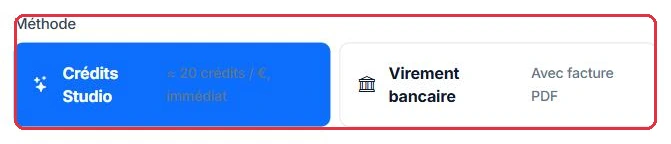
The "Request a Withdrawal" button opens the page of the same name: "Convert your revenue into credits or request a bank transfer". It shows your available balance, then offers a "Amount to withdraw" field (minimum €50, maximum your balance, pre-filled with the full balance) and a choice of "Method":
"Studio Credits" — conversion into AI credits at a rate of 20 credits per euro, immediate and with no supporting documents required. The credits feed into your productions in the studio.
"Bank Transfer" — payment of your earnings to your bank account. This method is reserved for clients able to issue invoices: as long as your client profile does not include a company name and VAT number, the option remains greyed out, with the note "Reserved for companies". Once the profile is completed, it becomes selectable and displays "With PDF invoice".
As soon as you select "Bank Transfer", three additional fields appear:
IBAN — spaces are removed and the entry is converted to uppercase on saving;
BIC / SWIFT;
Invoice (PDF) — mandatory. It must be in PDF format and must not exceed 5 MB: any other format or an oversized file will cause the submission to fail with an error message.
A notice reminds you of the two rules to be aware of before confirming: invoice made out to Vestaradio is mandatory, and payment terms of up to 60 days in accordance with the Terms and Conditions.
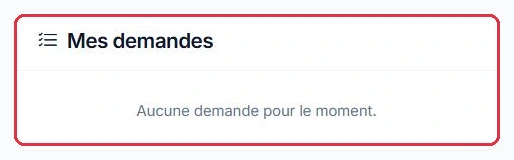
The "Submit request" button records the withdrawal. The "My Requests" table summarises your last 10 requests with their date, amount, method and status: "Pending", "Paid" or "Declined".
Example
Two stations reach the threshold in the same month, and make different choices.
Ambiance FM is a community radio station with no invoicing structure. On the withdrawal page, the "Bank Transfer" option appears greyed out, marked "Reserved for companies". It therefore chooses "Studio Credits": the conversion is made at a rate of 20 credits per euro, and the credits immediately go towards producing its jingles and AI segments.
Studio Nova is a company: its client profile includes its company name and VAT number, so the "Bank Transfer" option is active. It enters its IBAN and BIC, attaches its PDF invoice made out to Vestaradio (under 5 MB), then clicks "Submit request".
Client profile completed→"Bank Transfer" method→IBAN + BIC + PDF invoice→Status "Pending"→Transfer (up to 60 days)
Why: the real question is "can I issue an invoice?". Without an invoicing structure, the bank transfer is not available — but Studio Credits always are, and with no delay. With a company, the transfer becomes possible as soon as the invoice is attached: it is the invoice that authorises VestaRadio to make the payment, which is why it is mandatory and must be made out as specified.
Good to know:Only one request can be pending at a time, and the requested amount is held during processing: it leaves the "Available Balance" until the payment is made. If a request is already in progress, the page displays "You already have a pending request"; if your balance is below the threshold, it reminds you "The minimum withdrawal amount is €50.00".
Tip:
You are not required to withdraw your entire balance: enter the amount that suits your current needs and let the rest accumulate for a future request. For bank transfers, simply ensure that the amount requested matches the invoice attached.
Studio Credits, immediate, or bank transfer with invoice Click to enlarge Tracking your withdrawal requests Click to enlarge
The "My Documents" page
The "My Documents" button, at the top of the Revenue page, opens your supporting documents space: "Bank details, company registration documents and supporting documents required for bank transfers". This is where you build the file that makes a bank transfer possible: for a transfer request to be paid, it must include the invoice attached to the request and a bank details document with "Validated" status on this page. Without a validated bank details document, the file is incomplete and payment is on hold.
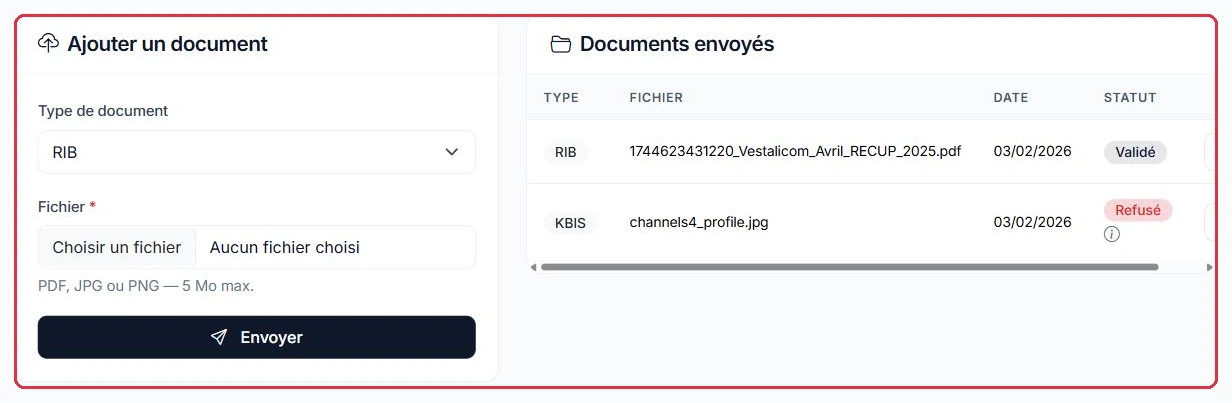
The "Add a document" block has just two fields:
"Document type" — Bank details, Company registration, Invoice or Other;
"File" — accepted formats: PDF, JPG or PNG, 5 MB maximum; any other format is rejected on submission.
The "Send" button uploads the document and displays "Document sent. It will be verified by our team".
Alongside it, the "Sent Documents" table lists each document with its type, file name, upload date and verification status:
"Under review" — the document has been uploaded but not yet examined by the team;
"Validated" — the document has been accepted;
"Declined" — a small information icon displays the reason on hover, so you know what to resubmit.
Each row has a download button to retrieve the document as it was submitted. Like the rest of the section, this page is reserved for the main account.
Example
Studio Nova knows it will be requesting a bank transfer. It does not wait to reach the threshold before preparing its file.
"My Documents"→Upload bank details then company registration→"Under review"→"Validated"→Threshold reached: transfer requested
Type "Bank details" → its bank account details document in PDF, well under 5 MB.
Type "Company registration" → a recent extract, scanned as a JPG.
Both entries first show "Under review", then "Validated" a few days later. By the time the threshold is crossed, all that remains is to enter the IBAN and attach the invoice on the withdrawal form.
Why: uploading supporting documents before reaching the threshold saves time on the first transfer. Verification is not instant, and a declined document can be resubmitted without consequence as long as no request is in progress. Acting in advance avoids adding this delay on top of the payment processing time.
Tip:
The "Invoice" type also allows you to archive your withdrawal invoices here: they remain downloadable from the table, which is convenient for your accounting.
Uploading bank details and company registration documents, and the status of each document Click to enlarge