This page decides what goes on air, and when. You place your playlists on a weekly grid, add exceptions and recurring slots, and monitor live broadcasting.
You access it via the "Programming" menu entry in the sidebar.
Without a radio, the page displays "No radio configured" and redirects to the available plans.
While the radio is being set up, it displays "Radio being installed".
All times are shown in your radio's local time, not your browser's time.
Good to know:
Programming places in time the playlists and files prepared in "Playlists", "My Music" and the "Production" menu. Two exceptions create content directly from this page: the "Create a show" button, which builds a playlist and its slot in one step (see the Create a show guide), and the AI host intervention within a scheduled slot, whose voice is generated just before each broadcast.
The page header, with the "Tracks broadcast" and "History" buttons. Click to enlarge
Terminology and priority order
Four concepts overlap. They do not replace one another — they form a hierarchy. In the event of a conflict, the station applies the following order, from highest to lowest priority:
1. Manual takeover — a live broadcast, or a playlist launched from the editor using "Put on air". It takes precedence over everything else for as long as it runs.
2. Dated event — a one-off scheduled broadcast on a specific date. It overrides the grid for its entire time window.
3. Grid slot — the standard weekly schedule, repeated every week.
4. Default playlist — the safety net. It takes over whenever no slot or event covers the current time.
And to distinguish the four objects you work with on this page:
A slot places an entire playlist on a time block, on one or more days of the week, on a recurring basis.
An event does the same but on a specific date, once only, overriding the grid.
A scheduled slot does not place a playlist but one or more files, at a set time, on a recurring basis. It is inserted into whatever is currently playing.
An hourly top is a file broadcast at the start of each hour, configured hour by hour and day by day.
The "Tracks broadcast" button: what actually went out on air. Click to enlarge
The 5 tabs
The page is divided into five tabs:
"Grid" — the weekly grid and its slots.
"Now playing" — what is currently on air.
"Events" — one-off dated broadcasts.
"Scheduled slots" — files broadcast at a fixed time, on a recurring basis.
"Hourly tops" — the file played at the start of each hour.
The "Events" and "Scheduled slots" tabs display an orange badge showing the number of active items.
At the top of the page, two buttons take you outside the programming itself: "Tracks broadcast" (see the Tracks broadcast guide) and "History".
Just above the tabs, the toolbar displays your radio name, the slot counter, and two buttons: "Create a show", which opens the show generator on a dedicated page, and the lightning bolt button "Regenerate all".
The five tabs: Grid, Now playing, Events, Scheduled slots, Hourly tops. Click to enlarge
The "Grid" tab
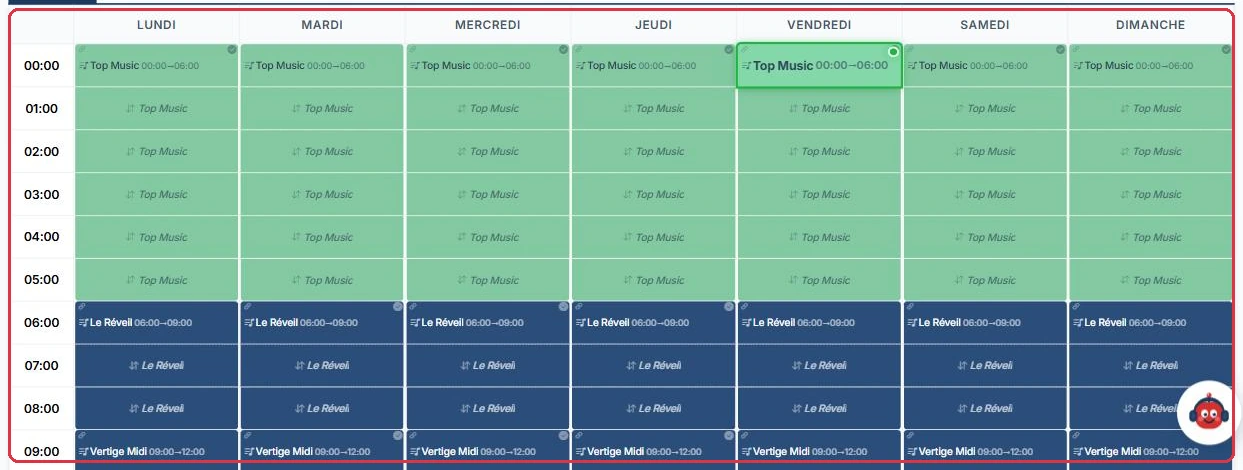
The grid covers all 7 days, from "Monday" to "Sunday". Click an empty cell to create a slot, drag a slot to move it, or stretch its handle to change its duration. The slot counter is displayed next to your radio name, and the "Search for a programme (playlist)…" field highlights the slots for a given playlist.
Clicking an existing slot does not open its settings window directly, but instead opens the "Tracks" panel (see below), from which the "Edit slot" and "Delete slot" icons are accessible.
The slot window offers:
"Days" — tick one or more days; they remain linked to one another.
"Playlist" — the playlist broadcast during this slot.
"Start" and "End" in hours and minutes, with the calculated duration shown below.
"Colour" — a visual reference in the grid.
"Slot takeover" — "Let the current track finish (recommended)" or "Immediate crossfade (cut the current track)".
At the bottom of the window: "This day" and "All linked days" to delete, and "Duplicate" to copy the slot to other days (shortcuts: "Week", "Weekend", "All").
The lightning bolt button in the toolbar opens "Regenerate all": it recalculates the playlists for all existing slots, with a new random order respecting the anti-repetition rules. Use it after modifying the content of a playlist. It does not create or delete any slots.
Good to know:
An overlap between two slots triggers a warning in the window before saving. Read it carefully: two overlapping slots produce unpredictable output on air.
A slot whose playlist has been deleted is displayed in red with the message "Playlist deleted: this slot is not broadcasting anything — please reschedule it". Open it and choose another playlist, or delete it: as long as it remains, the time block falls back to the default playlist.
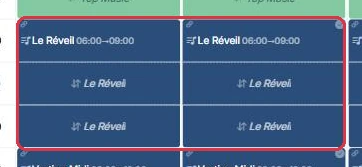
The weekly grid: one column per day, one row per hour, one colour per playlist. Click to enlarge A placed slot: the playlist name and its time block, here from 6am to 9am. Click to enlarge
The "Tracks" panel for a slot
Clicking a slot opens the "Tracks" panel on the right. Its header shows the day and time block, the playlist, the linked days, and provides the "Edit slot" and "Delete slot" icons, as well as a "Search in the list..." field.
What the list shows depends on your radio\'s scheduling mode:
In dynamic scheduling (the default mode), a blue banner reads "Dynamic scheduling — this list is recalculated live on air", warning that the projected tracks may change (anti-repetition, time conditions, scheduled slots, adverts). The panel footer shows "Sequence recalculated live" with the "Refresh" and "Live broadcast" buttons, the latter switching to the "Now playing" tab. A "another playlist is taking over" badge indicates that a dated event or another slot covers this time block.
In static scheduling, the list is the fixed file that plays on air: the "Regenerate" and "Save playlist" buttons let you draw a new order or save your edits, and each track offers "Replace" (opening the "Replace track" window, filterable by type) and "Delete".
Good to know:
In dynamic mode, an "AI Host" line has no file yet in the projection: the voice is generated at the last moment, a few minutes before it airs. It is perfectly normal not to be able to listen to it from this panel.
Clearing the programming grid
The "Clear the programming grid" button, at the bottom of the "Grid" tab, is a destructive action. The confirmation window details what will happen:
All scheduled shows, on all days, are permanently deleted.
Your default playlist is put on air continuously; its name is shown in the window.
Your listeners will hear the change live. The transition lets the current track finish.
Events and hourly tops are not affected.
You must confirm by clicking "Clear and start the default playlist". If no default playlist is defined, a warning states that the grid will be cleared without any playlist being started.
Tip:
Before clearing, assign a solid default playlist in the "Playlists" page. It will hold the airwaves while you rebuild the grid.
The "Events" tab
The "Events" tab manages "Exceptional broadcasts". The "New event" button asks for an "Event name", a "Date", a "Playlist", a "Start" time, an "End" time and a "Colour". The event takes priority over the weekly grid at the defined date and times, after which the grid resumes on its own.
The list separates "Upcoming" events, which can be edited, from "Past (last 7 days)" events, which can only be deleted.
The "Scheduled slots" tab
The "Scheduled slots" tab manages "Scheduled programming slots": one or more files, or an AI host intervention, broadcast at a set time on a recurring basis, automatically inserted into whatever is currently playing. The list can be filtered using the "Search for a slot (name, file, time…)" field and by day ("Days: All, Mon … Sun"); each row offers options to activate or pause, edit and delete.
The "New scheduled slot" button opens the following window:
"Slot name" — optional, for example "Morning news flash". This is the name the AI host may mention on air (see below).
"File(s) to broadcast" — via "Add a file", choosing from your music, "Jingles", "My features", "Ready-made features", "Spots" or "Podcasts", or via "Add a host intervention". Items can be reordered by drag and drop.
"When there are multiple files" — "All, in sequence", "Rotation (one per broadcast)" or "One at random".
"Recurrence" — "Every day", "Certain days of the week", "Between two dates (period)" or "Once only (specific date)". For a period, both dates are inclusive, and the days ticked below apply within the period: untick days to broadcast only on certain days during the period.
"Broadcast time(s)" — added one by one with "Add", or in bulk with "Generate multiple times automatically" (from… to…, every N hours or minutes, then "Generate").
"At the scheduled time" — "Fade out and interrupt" (recommended, cuts the current track) or "Wait for the current track to finish" (smooth transition).
The "Active" toggle and a "Colour" for identification.
Good to know:
Some "Ready-made features" depend on your plan. If one is not included, the "Feature not included in your plan" window appears and offers the option to upgrade your subscription.
The AI host intervention in a scheduled slot
The "Add a host intervention" button opens the "AI Host Intervention" panel. Its promise: "The voice is generated just before the scheduled time, at every broadcast." This is what makes it possible to have, at 7:00 am every morning, a weather report or news flash that is genuinely from that day.
"What does the host say?" — "Today\'s news", "Today\'s weather", "On this day in history" or "Free topic", with a "Topic" field depending on the chosen block.
"Instructions for the host" — optional, 500 characters: a writing brief added at every broadcast (e.g. "always give the year, keep it to two sentences, end by announcing what\'s coming up…"). It is not read on air.
"Voice" (required), "Tone" ("Standard" by default) and "Background sound" ("No background sound" by default, with a "Background sound volume" from 5 to 50%, 15% by default): the same selectors as for a spot or jingle.
"On-air duration" — from "~10 s · very short" to "~60 s · very long", "~20 s · standard" by default.
"Writing style" — "Warm & close", "Fun, young & energetic", "Professional, neutral & elegant", "Friendly local host", "Mellow / lounge (evening)" or "Classic & composed radio".
"Language" — French, English, Spanish, German or Italian.
"Label" — for display purposes only, for example "The 8am flash".
"Search for up-to-date information online" — required for weather, news and on-this-day content (current-day data). Each search costs 1 credit, up to a maximum of 5 per intervention.
"Mention the radio name on air" and "Mention the slot name on air" — when unticked, the host only names them if it fits naturally.
The "Test the text" button generates a sample using the settings above: nothing is broadcast or saved, but any web search performed is charged. Confirm with "Validate": the intervention is added to the slot\'s file list.
Good to know — credits:
The voice is regenerated at every broadcast (current-day content) and consumes credits: the panel displays "Approximately N credit(s) per broadcast" and your balance. A slot with 6 broadcasts per day therefore deducts that amount 6 times, plus the web search. The text actually spoken can be reviewed afterwards in "Tracks broadcast" and in "Production" > "AI Host".
Example
Radio Soleil wants a local weather report every weekday morning at 7:00 am and 8:00 am, throughout the summer.
"New scheduled slot"→Name: Météo Soleil→"Add a host intervention"→"Today\'s weather", topic "Montpellier and the coast"→"Between two dates (period)", Mon→Fri→07:00 and 08:00
In the panel, the "Search for up-to-date information online" box is ticked by default, the duration stays on "~20 s · standard", and "Mention the slot name on air" allows the host to say "here is the Météo Soleil".
Why: using a period-based recurrence avoids having to delete the slot at the end of summer, and two broadcasts per day is sufficient: each one costs the voice plus the search, so there is no point multiplying occurrences.
The "Hourly tops" tab
An hourly top is the file broadcast at the start of each hour, in the radio\'s local time. Hours left empty are simply ignored.
Settings are configured by day of the week: each day has its own tab, with a badge showing the number of hours filled.
It is not reserved for jingles: the selector offers your music, "Jingles", "Features", "Spots", "Podcasts", and an import tab for uploading an audio file directly.
Three shortcuts at the top: "The same all day", "Copy to all days" and "Clear this day".
Tip:
Set up a complete typical day first, then use "Copy to all days" and adjust only the weekend. This is far quicker than filling in 168 individual cells.
Monitoring the live broadcast
The "Now playing" tab shows in real time the track being broadcast, its source playlist and the "Playlist queue". It updates automatically every 10 seconds, and a button lets you refresh now.
In dynamic scheduling, the list is divided into sections: "Already broadcast", "Now playing", "Loaded — broadcast imminent" and "Up next", with the estimated broadcast time for each track. While the queue is being built, the page shows "Queue being assembled…".
AI Host interventions are highlighted with their text. For an upcoming intervention, the "different text" button requests a rewrite: the suggestion is displayed with "Put this one on air", "Another one" or "Cancel". Automatic refresh is paused while the suggestion is open.
The "Tracks broadcast" button at the top of the page opens the actual broadcast history ("Timeline (72h)" and "Track counter"). It is covered in the Tracks broadcast guide.
Good to know:
"Now playing" shows the broadcast as it happens; "Tracks broadcast" shows what has already aired. If there is any doubt about what went out, the latter is the authoritative source.
The "History" tab
The "History" button opens "Programming History". This is a read-only log of playlist generations: it records what the system produced, and nothing else.
The table lists the "Date", the "Slot", the "Playlist", the number of "Tracks", the "Duration" and the "Status".
The "Details" button displays "Generated tracks": the full list of titles with their type and duration.
Filters apply to the status ("Success" or "Error") and to a date.
In the event of a failure, the error message is displayed directly in the row.
This page does not allow any rollback: past generations cannot be restored and nothing can be replayed from here. To fix an issue, edit the playlist and then use "Regenerate all" on the "Grid" tab.
Tip:
If there is dead air, open the history first and filter by "Error": a failed generation on a slot explains most silences.