This page creates your "Exportable Player": a player in your own colours that you can embed on any website, share via a link, or let your listeners open in their favourite software. You will find it in the "Web Broadcasting" > "Radio Player" menu.
Good to know:
You need an active, installed radio. Otherwise the page displays "Radio not configured" and a "Configure my radio" button.
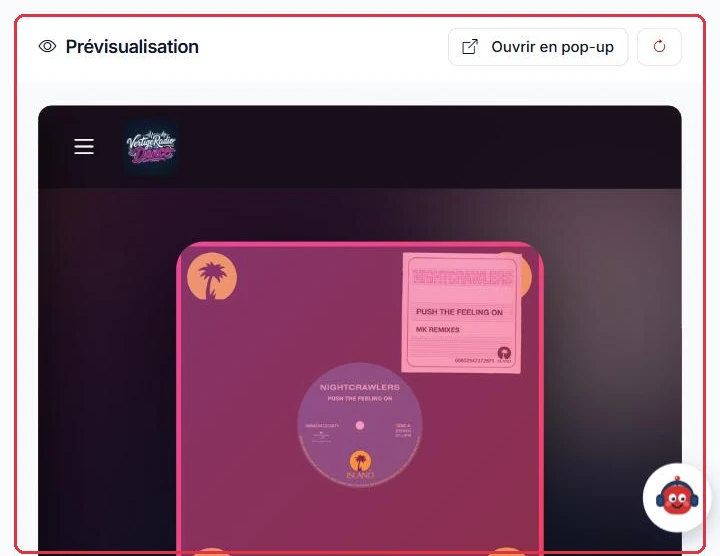
The preview, on the right: the player exactly as your listeners will see it Click to enlarge
"Player Format": 4 layouts
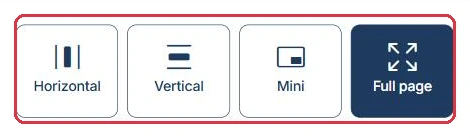
The first section offers four formats, not three:
"Horizontal" — the classic banner, at the top or bottom of the page.
"Vertical" — the sidebar column widget.
"Mini" — a compact bar, for a header or a floating button.
"Full page" — the full-page format, where all features are displayed directly, without any panel to open.
Example
Radio Horizon embeds its player in three different places. The format is chosen by location, never by preference.
Banner below the homepage menu → "Horizontal" format.
Blog sidebar column → "Vertical" format.
"Listen Live" page → "Full page" format.
Partner site header → "Mini" format.
Why: in "Full page" mode, dedications, history and rankings are displayed directly, without any panel to open — it is the only format that justifies a page of its own. Conversely, a "Mini" on a dedicated page would offer nothing more than a play button.
The four formats: Horizontal, Vertical, Mini and Full page Click to enlarge
"Colours" tab
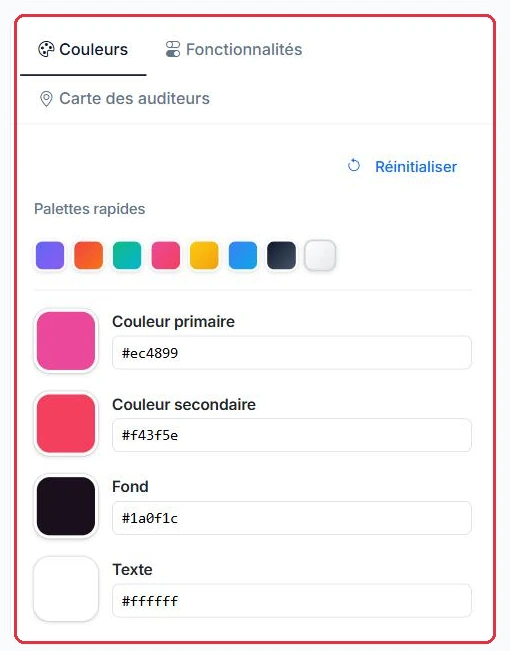
You start from one of the "Quick Palettes" (purple by default, red-orange, emerald, bright pink, golden, sky blue, dark minimal, light minimal), then adjust each shade: "Primary colour", "Secondary colour", "Background" and "Text". Each colour can be set with the colour picker or by typing its hexadecimal code. The "Reset" button returns to the original palette.
Example
Radio Cactus has a red logo and a light-coloured website. It styles its player in two steps.
"Light minimal" palette→Primary colour = logo red→"Save configuration"
The red is entered directly in the hexadecimal field; the other three shades remain those of the palette.
Why: palettes provide "Background" / "Text" combinations that are already readable. By changing only the primary colour, you apply your brand identity without risking light grey text on a white background.
The quick palettes, then the four colours adjustable one by one Click to enlarge
"Features" tab: 5 options to enable
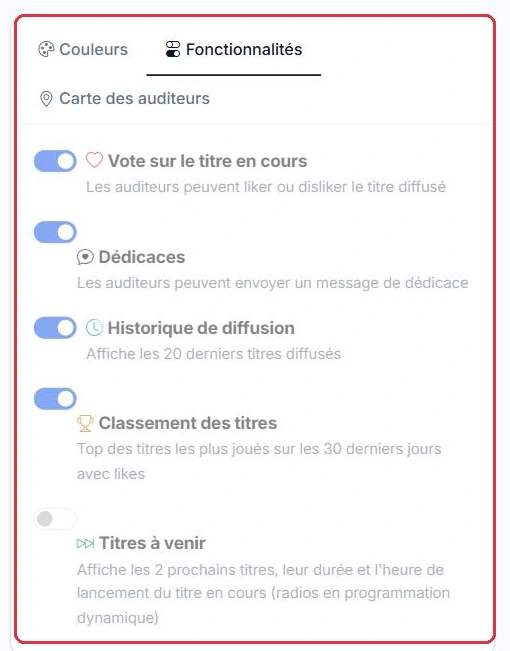
"Vote on the current track" — your listeners can like or dislike the track currently on air.
"Dedications" — they can send you a dedication message directly from the player.
"Broadcast history" — the last 20 tracks played on air.
"Track rankings" — the top tracks most played over the last 30 days, with likes.
"Upcoming tracks" — the next 2 tracks, their duration and the start time of the current track. Reserved for radios using dynamic scheduling.
Good to know:
Enabling a feature increases the effective height of the player: in "Horizontal" mode, the preview goes from 80 to 180 pixels as soon as an option is checked. Remember to adjust the height of your iframe accordingly.
Example
Ambiance FM launches its horizontal player and enables only two of the five options.
"Vote on the current track"→"Dedications"→Height 80 → 180 px→"Save configuration"
"Broadcast history" and "Track rankings" remain unchecked while the station runs for a few weeks. "Upcoming tracks" is not available: the station does not use dynamic scheduling.
Why: votes feed both the 30-day rankings and the Weekly Top 10 — without them, both pages remain empty. Dedications only appear under "Tools > Dedications" if this option is checked here.
The five toggles, each showing what it adds to the player Click to enlarge
"Listener Map" tab
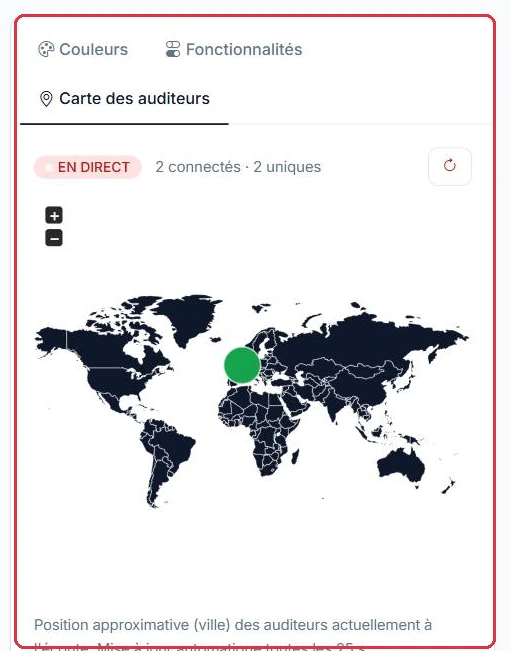
A live world map shows the approximate location (by city) of listeners currently tuned in, along with the "LIVE" badge and the number of connected listeners. The map updates automatically every 25 seconds, and a button allows you to force a refresh.
Good to know:
The message "No locatable listeners connected at the moment" is normal when nobody is listening — or when the listeners present cannot be located. If the radio is offline, the map will indicate this as well.
The live map: number of connected listeners and approximate location Click to enlarge
"Preview" and saving
The right-hand column displays the player exactly as your listeners will see it, and it updates with every change. The "Open in pop-up" button launches it in a window sized for the chosen format.
Tip:
The preview reflects your current settings in real time, but the published player follows the saved configuration. Always finish by clicking "Save configuration", otherwise your listeners will not see your changes.
The "Save configuration" button, below the settings column Click to enlarge
"Embed Code" tab and short link
Two ways to share your player:
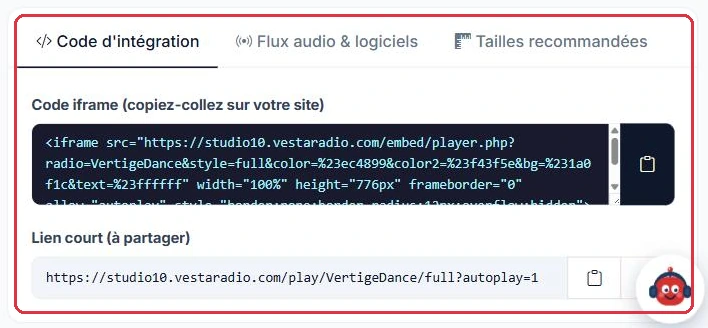
The "Iframe code (copy and paste onto your site)": one click on the copy icon, one paste into your page, and it is live.
The "Short link (to share)", in the form /play/YourRadio, with the format appended when it is not horizontal (/play/YourRadio/vertical, /mini, /full). It opens the player with your saved colours and starts playback immediately.
Good to know:
The iframe code does not lock in your features: they remain controlled by the radio\'s saved configuration. You can therefore enable dedications or rankings later without updating the code on your site.
Example
Studio Nova shares its player in two places, using two different methods.
On its website: it copies the iframe code and pastes it into the homepage. Nothing else to do.
On social media: it shares the short link /play/StudioNova/full, which opens the full-page player in its colours and starts playback.
Three weeks later, it checks "Dedications" in the "Features" tab and saves: the player already embedded on its site displays the new feature without a single line of code being changed.
Why: the iframe code points to your saved configuration — it does not copy it. The short link never breaks: simply add /vertical, /mini or /full to switch format.
The iframe code to copy and paste, and the short link to share Click to enlarge
"Audio Stream & Software" tab
This is the tab to share with anyone who wants to listen to your radio outside of a website.
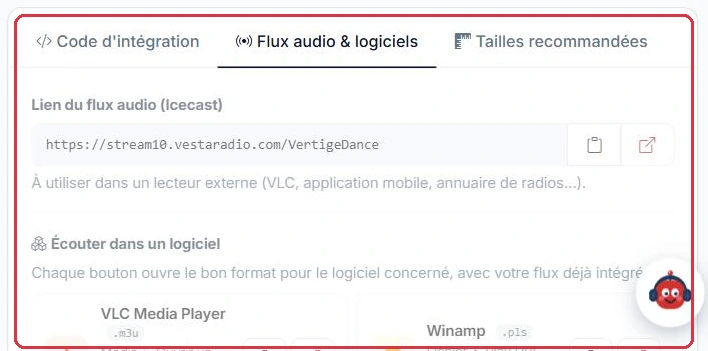
The "Audio stream link (Icecast)": the direct URL of your broadcast.
One button per use case, with the correct format already prepared: "VLC Media Player" (.m3u), "Winamp" (.pls), "foobar2000" (.pls), "iTunes / Apple Music" (.m3u), "Windows Media Player" (.asx), "Sonos · Alexa · Google Home" (direct URL), "Directories (TuneIn, Radio Garden…)" and "Mobile apps" (.pls).
The "JSON link (current track)": live metadata — title, artist, artwork, listener count — to feed a third-party site or a custom display.
Good to know:
These playlist files are generated on the fly: the stream URL is injected at the moment of download. The links you share therefore remain valid even if our streaming server changes.
Example
Radio Horizon receives three requests in the same week. Each one has its own button in this tab.
A listener wants to listen on their computer using VLC → "VLC Media Player" button, .m3u file.
A listener wants to start the radio by voice on their smart speaker → "Sonos · Alexa · Google Home" button, which provides the direct URL.
A partner site wants to display the current track → "JSON link (current track)", which returns the title, artist, artwork and listener count.
Why: each piece of software expects its own format. Giving the raw Icecast URL to someone using Winamp means three back-and-forth messages for nothing.
The Icecast stream URL and shortcuts to listening software Click to enlarge
"Recommended Sizes" tab
The recommended dimensions for your iframe, by format:
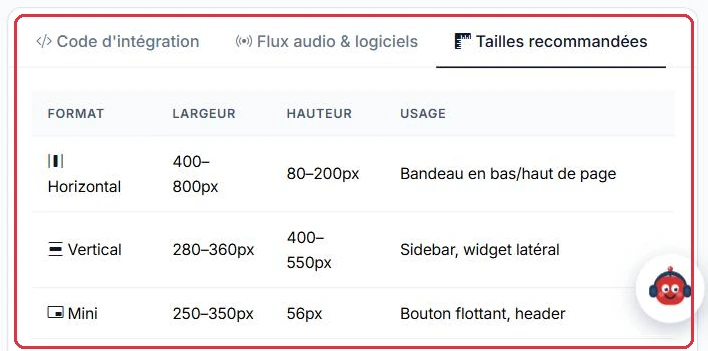
"Horizontal" — width 400 to 800 px, height 80 to 200 px: banner at the top or bottom of the page.
"Vertical" — width 280 to 360 px, height 400 to 550 px: sidebar, lateral widget.
"Full page" — width 100%, height 700 to 900 px: dedicated page, full-screen radio tab.
Tip:
The generated code already applies the correct size. If you adjust it manually, leave some extra height: a player that is too short will cut off dedications and history.
Example
Radio Horizon notes the values actually written in the copied code, for its three integrations.
Homepage banner, "Horizontal" with no options: width="100%", height="96px". With votes and dedications enabled, the height becomes 196px.
Sidebar column, "Vertical": width="360px", height="496px" — within the recommended range of 280 to 360 px wide.
The "Mini" comes out at 320px by 72px: the bar itself is 56 px, plus 16 px of margin added by the code.
Why: those 16 px of margin prevent an unsightly scrollbar from appearing inside the iframe. If you force the exact height of the player, your site will display a three-pixel scrollbar.
The recommended dimensions for each format Click to enlarge