This is your personal music library: tracks you import yourself, to complement the VestaRadio catalogue. They then feed your playlists, scheduled shows and hourly tops.
You open the page via the "My Music" menu entry, directly in the sidebar.
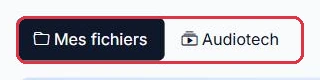
The page is divided into two tabs:
"My Files" — your own imports.
"Audiotech" — the shared catalogue, browsable and filterable by category, tag and FM rotation. Its files do not count against your quota; you can pick tracks from it for your library, and report or replace a defective file.
Good to know:
The round button with a question mark in the top right corner relaunches the guided tour of the page.
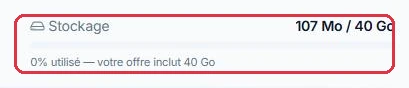
The "My Music" page, accessible directly from the sidebar. Click to enlarge The storage gauge in the top right: space used out of what your plan includes. Click to enlarge
Importing tracks
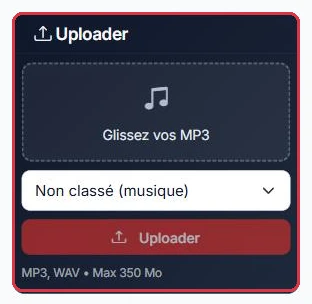
The "Upload" panel, in the top left, supports drag-and-drop or selecting multiple files at once.
Accepted formats: MP3, WAV, FLAC, OGG, M4A and AAC. Anything that is not MP3 is automatically converted to MP3 on arrival.
Maximum size: 350 MB per file. Any larger file is ignored, and a message tells you how many files were skipped ("N file(s) > 350 MB ignored").
If a file has the same name as a track already in your library, the "Replace existing files" window opens: "N file(s) share the name of an existing item and will replace it (file + info updated, no duplicate created)." Confirm with "Replace and upload" or cancel.
If the upload exceeds your quota, the "Storage quota exceeded" window warns you: "This upload (…) exceeds the space included in your plan (already … / … GB used)." You can continue with "Upload anyway", but consider freeing up space or adding storage.
The drop-down menu below the upload area selects the destination: "Uncategorised (music)", one of your categories, or a folder from the "Productions — dedicated upload" group.
After uploading, a "Processing" badge remains displayed while the file is being re-encoded and normalised in the background.
On import, the title and artist are derived from the file\'s metadata or its filename, and the duration is detected automatically. Album art is not guaranteed: if the file does not contain any, search for it or import it yourself from the "Edit track" window (using the "Deezer" or "File" button).
Tip:
Name your files in the format Artist - Title before importing. The automatic parsing is far more reliable, and you will save yourself having to correct each track manually.
The "Upload" panel: drag your files, choose the category, then start the import. Click to enlarge
Categories and system folders
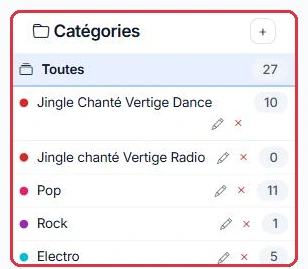
The "Categories" column organises your library into bins. The + button creates a category with a "Name" and a "Colour". A track can belong to multiple categories.
Below your personal categories, a "Productions" section appears. These are read-only system folders:
They reflect content created in the "Production" menu and remain synchronised with those pages.
You can browse and listen to them, but you cannot rename or delete them, nor freely move a track into them.
Tracks in the "Audiotech" tab cannot be edited from your account (title, artist, artwork): they are shared by all radio stations. See below for what you can still do with them.
The "All categories" filter next to the search bar uses the same list. The clock button displays your most recent uploads from the last 24 hours.
Good to know:
A category whose name contains "jingle" automatically applies short transitions on air. Without this, a jingle stored among music tracks will be crossfaded and become inaudible.
The "Categories" column showing the track count for each, and the + button to create a new one. Click to enlarge
Bulk actions
Tick several tracks to reveal the bulk action bar:
Add to the selected category without removing the others.
Remove from the selected category.
Replace: keep only the selected category.
Delete the selection.
"Artwork" — apply the same image to the entire selection.
"Send" — route the selection to a Production section.
The "Send to…" menu offers "Jingles", "Features", "Spots", "Podcasts" and "Voice tracks". The confirmation makes it clear: a copy is created in the chosen section and the files are removed from "My Music".
Tip:
A file shorter than 15 seconds triggers the "Place in the right location" alert. Follow it: jingles, spots, features, podcasts and voice tracks belong in the Production area, not in the music library.
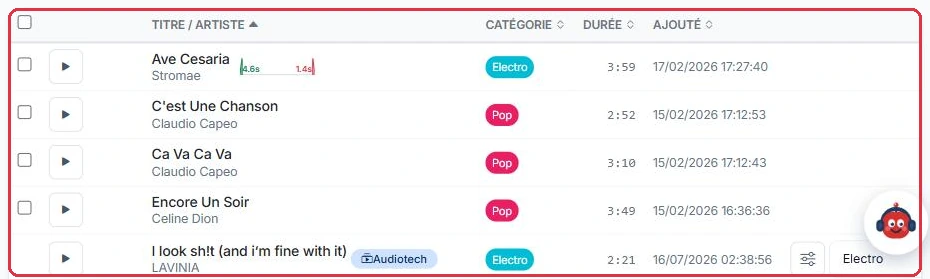
The list: checkboxes, playback, title and artist, category, duration and date added. Click to enlarge The search bar, category filter and track counter. Click to enlarge
Artwork: individually and in bulk
In the "Edit track" window, the thumbnail on the left offers two buttons:
"File" — import an image from your computer.
"Deezer" — search for artwork based on the title and artist, then choose from the results displayed.
To process an entire selection, the "Artwork" button in the bulk action bar opens "Artwork for selection". You can "Import an image" (JPEG, PNG or WebP) or use "Or search for artwork" by entering an "Artist" and a "Title / album". The "Apply" button sets the same image on all ticked files.
The edit window also lets you correct the "Title", "Artist", "Album", "Year" and "Categories".
Good to know:
Bulk artwork is designed for an album or compilation. Applied to a mixed selection, it will overwrite artwork that is already correct.
The waveform editor
The "Fine editing (trim + fade)" button, at the bottom of the edit window, opens "Edit track". The waveform is displayed with the fades drawn over it.
Four settings:
"Start" and "End" — the trim points: anything outside the selected range will not be broadcast.
"Fade-in" and "Fade-out" — the intro and outro fades, adjustable up to 15 seconds.
Below, the "Custom crossfade point" toggle defines the moment at which the next track starts, up to 30 seconds before the end. The higher the value, the more pronounced the overlap. Without it, the station\'s global setting applies. This setting is also accessible directly via the "Crossfade point" button for production files.
The "Edited preview" button lets you listen to the result with cuts and fades applied, "Reset" reverts to the original file, and "Save & regenerate" produces the new file.
Tip:
Always listen with "Edited preview" before saving: regeneration replaces the file currently broadcast on air.
The two tabs: "My Files" for your imports, "Audiotech" for the shared catalogue. Click to enlarge
The storage gauge
To the right of the tabs, a "Storage" gauge displays the space used by your library, the quota included in your plan, and the percentage used.
The bar turns orange at 75% and red at 90%.
The quota comes from your radio plan and is communicated to you when your subscription is activated.
The gauge only appears if a quota is actually associated with your account.
A "Storage" gauge is also present at the bottom of the sidebar, with a link to the details.
Good to know:
A deleted file does not free up space immediately: it goes to the trash on the "Storage" page, where it is kept for a while. It is the "Empty trash" button on that page that permanently reclaims the space. A file sent to a Production section, on the other hand, remains stored: it simply moves to a different area.
The "Audiotech" tab: pick, report, replace
The "Audiotech" tab offers a "Search the Audiotech catalogue..." field, a filter by category/genre, a filter by tag, and a button to "Add this entire category to one of my categories": the "Add an Audiotech category" window asks for the source "Audiotech category", the target category in your library, and indicates "N track(s) will be added to your category."
On each track, the "Add to my library" button makes it available in "My Files" and your playlists, without copying it and without consuming your quota; the "Already in your library" badge marks tracks you have already added.
The FM rotation badges ("A · 27×", "B", "C") indicate that the track is currently being broadcast on FM stations monitored by the platform: "Rotation A — heavy", "Rotation B — medium", "Rotation C — light", and "new release" for a track detected on FM within the last 3 weeks. The filter "Show only tracks broadcast on FM stations" ("All FM", "In FM rotation", "FM new releases", rotation A, B or C) and the sort order "Most broadcast on FM first" are based on this data. Clicking a badge opens the "FM radio broadcast" details: plays over 7 and 30 days, stations broadcasting it, plays per day and broadcast times. The full chart is in "Tools › The Radio Top" (see the tutorial The Radio Top).
The flag button opens "Report this track": "The track will be removed from the schedule while our team reviews it." Choose the "Station concerned", a "Reason" ("Poor audio quality", "Cut / incomplete file", "Does not match the station\'s format", "Explicit lyrics", "Incorrect title or artist", "Duplicate", "Other") and optional "Details" (500 characters), then click "Report".
For stations that have the right to do so, the same window offers "Do you have a better version?" with a "Replace file" button: the "Find a better version" link opens a pre-filled search in a new tab, then you drop in the "New audio file" (MP3, WAV, FLAC, OGG or M4A). The file is converted, normalised and its artwork searched automatically, just like a standard import.
Good to know:
Replacement is permanent and affects everyone. The page states it plainly: "This track is shared by all stations: the new file replaces the old one for everyone, immediately. Every replacement is logged and reviewed by our team." Reserve it for genuinely defective files; if you are unsure about the version, use "Report" instead.
Example
A track from Audiotech cuts out at 2 min 30 on Radio Soleil\'s broadcast.
Flag button on the track→Reason "Cut / incomplete file"→"Report"→Track removed from the schedule, team notified
Why: reporting protects your broadcast immediately without affecting other stations. Replacing the file, on the other hand, affects everyone: only use it if you have a complete, good-quality version to hand.
Freeing up space
Above the table, a "Free up storage space" banner offers a simple optimisation: if a track you have imported already exists in Audiotech, your personal copy can be replaced by the shared version, which does not count against your quota.
The "Scan my files" button opens the storage optimisation page.
The track remains available in your playlists: only the file source changes.
This is the first thing to try when the gauge approaches 90%.
Tip:
Run the scan before purchasing additional storage. For a library built from commercially released tracks, the savings are often substantial.
The optimisation banner and its "Scan my files" button. Click to enlarge