
The "Exports" page lets you track the MP3 and video exports generated by the editing tools.
In the menu, click "Exports".
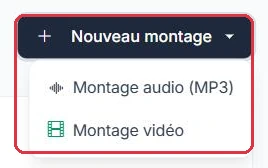
At the top: a "New project" dropdown menu to start an Audio project or a Video project.

Four indicators summarise your exports:
You launched three projects this morning and come back to the page in the afternoon. The "In progress" indicator still shows 1.
Why: "MP3 exports" and "Video exports" only count completed exports. As long as "In progress" is not at zero, one of your files is not yet downloadable — there is no need to relaunch the project, the page refreshes automatically.

A series of video exports launched last night produced nothing. You want to see only those.
Why: the two filters work together. Without them, you would have to browse through pages of 15 rows to spot the red badges among completed exports.

The table lists your exports (15 per page) with the following columns:
The page refreshes automatically every 30 seconds as long as an export is in progress.
A row shows the red "Failed" badge: here is what to do, in order.
Why: "Retry" puts the export back in the queue without requiring you to redo anything — your project is intact. Still, read the tooltip: if the failure recurs with the same message, the project itself needs to be revisited in the editor.

After clicking "Generate MP3" or "Export video", a tracking page displays a progress bar, then a "Download" button once the export is complete.
You are exporting a 3-minute video and need to leave before it finishes.
Why: the page polls the export every 3 seconds and switches automatically to the "Download" button — no need to reload manually. You can also close the page without any risk: the file will be waiting for you in "Exports", on the row with the "Completed" status.