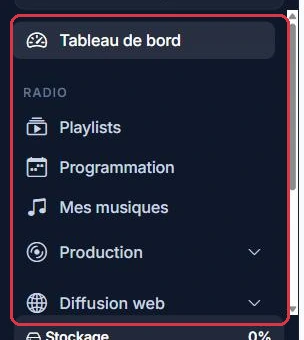
The side menu, the radio player and the top bar are identical throughout the studio. They are explained here, once and for all: the other tutorials will then focus on the content specific to each page.
Click ▶ on the left: the corresponding area lights up on the image (and the matching menu opens with an animation), accompanied by a voice explanation from Loïc.
You open the studio for the first time and have half an hour ahead of you. Here is the order that avoids going round in circles.
What can wait until next week: the Schedule down to the minute, the Radio Website, jingles and shows.
Why: a radio station that is already broadcasting something can be refined at leisure; a silent station blocks everything else.
After registering, log in with your email address and password. You will land on the Dashboard, the starting point of your studio.
You arrive on the dashboard: three reference points to check before clicking anywhere else.
Why: with several stations on the same account, creating a playlist on the wrong station is the most common beginner mistake.
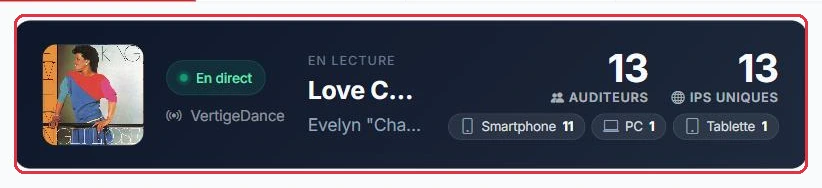
The dashboard itself reads from top to bottom: the live banner (current track, listeners, "ON AIR" or "OFFLINE"); a "News" carousel with platform updates; the "Listening Statistics" card with its "Display period" ("7 days", "30 days", "90 days"); a row containing the listener geolocation map (live or "Last 24 h"), the "Audiotech" card suggesting the latest catalogue tracks matching your station\'s genre, and the "Storage" card ("X% of Y GB") with its "Storage details" button; then the "Schedule" card ("Today", "Tomorrow", "Upcoming", "Manage schedule") and the summary cards "My Plan", "Peak Listeners" and "Support" ("Start chat").
As soon as a subscription is active, you initiate the go-live process in just a few seconds. The dashboard displays the "Radio station pending installation" card with the following instruction: "Configure each station (name, genre, logo, time zone) to trigger its automatic installation." Each station on the account has its own row, showing the status "To configure" and the "Install" button, which opens the "Set up my radio" page. Once configured, "each station is installed automatically within a few minutes" — usually less than one minute.
If a station has already been configured and its installation is in progress, the card becomes "Your radio station is pending installation", showing the three steps "Active subscription", "Installation in progress", "Station online", along with the "Install my radio" button and "Contact support".
The "Radio station pending installation" card is displayed and you have not yet chosen a name: that time is not wasted, however.
Why: all of this work is tied to your account, not to the stream. By the time the station goes live, your schedule will already be ready.
AI credits fund only artificial intelligence generations (voices, spots, jingles, shows, podcasts, etc.). A simple rule of thumb: 1 credit ≈ 3 seconds of generated audio, which is approximately 20 credits per minute.
If you want to estimate the cost of a production before launching it, start from the intended duration.
The counter displayed before generation applies exactly this calculation, rounded up to the next 3-second increment, with a minimum of 1 credit.
Why: thinking in seconds rather than in number of files avoids unpleasant surprises with your balance.
The side menu organises everything by section:
At the very bottom of the side bar, a storage gauge shows the space used against your quota ("X / Y GB"); it turns red above 90% and clicking it opens the "Storage" page.
Your profile (top right) groups together "AI Credit", "Subscription", "My Invoices" (shortcut to the invoices table), "Team", "Guide", "Settings", "Messaging", "Support" and "Log out". Depending on the permissions granted, a team member may only see a subset of these sections.
Radio Soleil wants to be on air today, with no schedule or branding. The minimum comes down to four steps, all within the Radio section.
The default playlist is always active and cannot be deleted as long as no other playlist has taken its place.
Why: it is the playlist played automatically as filler whenever nothing is scheduled on the grid — so from day one, when the grid is empty.