Your PDF commercial brochure for approaching advertisers
What is the "Media Kit" for?
The Media Kit is a commercial brochure in PDF format that presents your radio station to advertising buyers. The page describes it as follows: "Your radio commercial brochure in PDF, ready to convince advertisers and partners."
This is the document you send to a retailer, a brand, an agency, or a local authority when they ask "who listens to you, and how much does it cost?" It brings together in a single file your identity, your audience figures, your programming, the advertising formats you offer, and your rates. Without this document, every new contact starts from scratch; with it, you approach prospects with a credible, consistent support.
You will find it in the "Tools › Media Kit" menu, at /dashboard/kit-media.
Good to know:
This page remains accessible even without an active radio hosting subscription. The Media Kit does not appear in the services bar at the top of the dashboards: access it through the "Tools" menu.
Example
The garage in the retail park asks "how much does advertising with you cost?" The kit answers on your behalf.
First contact→Media Kit sent by email→20-minute meeting→Quote based on a kit format
The document has already answered the three questions that always come up: who listens to you, when, and what formats are available. The meeting can then focus on the budget, not on the credibility of your station.
Why: a local advertiser compares. Between a verbal pitch and a document with figures, they remember the one that looks like a media outlet.
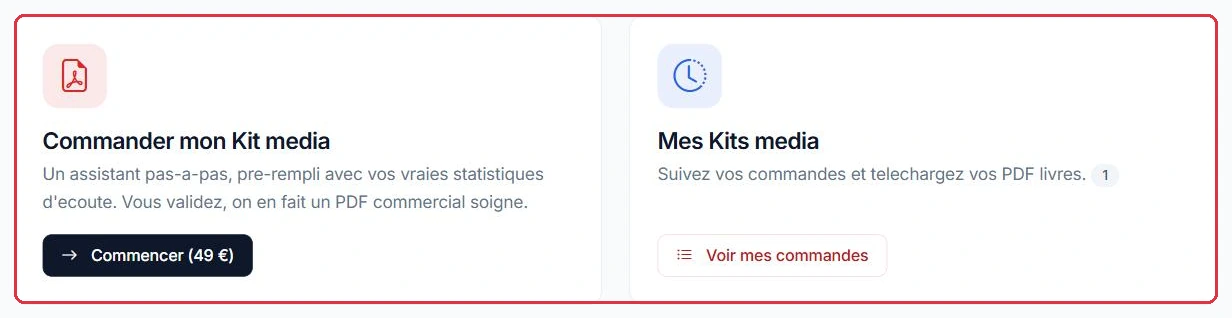
The two cards: place an order, or view your existing orders Click to enlarge
The price and the supervision option
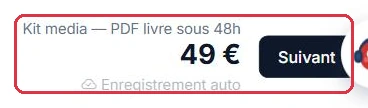
The Media Kit costs €49, as a one-time payment. The amount is shown on the "Get started (€49)" button on the home screen and in the payment bar at the bottom of the wizard.
An optional add-on is offered at the final step: "Review by a VestaRadio marketing expert" at +€69. It is described as follows: "One of our marketing team experts reviews and optimises your kit (taglines, figures, consistency, visual choices) before final delivery."
Good to know:
The option is selected at the "Summary" step. It then appears in the summary under the "Marketing expert review" line and is added to the total before payment.
Example
Two use cases, two totals.
Radio Soleil approaches five local retailers: €49, without the option. The kit serves as a meeting support.
Studio Nova responds to a media agency and a group of municipalities: €49 + €69 = €118. An expert reviews the taglines, highlights the figures, and checks consistency before delivery.
Why: the option is worthwhile when the document goes to a reader who sees ten of them a week. For a local retailer, the standard kit does the job perfectly well.
The price and turnaround time, shown at the bottom of the wizard Click to enlarge
The order steps
The home screen offers two options: "Order my Media Kit" and "My Media Kits". The order then proceeds through a seven-step wizard, displayed at the top of the page:
"Objective" — your primary target: "Advertisers / brands", "Municipalities / institutions", or "Both". The document\'s emphasis adapts to this choice.
"Formats & rates" — the offerings to highlight (spots, sponsorship, station branding, on-air mentions, native features, player banner, social media, bundle) and the desired pricing model.
"References" — references and proof points, "Commercial contact", "Contact email", "Phone number", "Appointment booking link" and "Free notes".
"Summary" — the recap, the supervision option, and payment.
If you select the "Local" area, an additional field asks for the target town or towns: it is required, as this area will be highlighted in the kit.
Tip:
Your input is saved automatically (indicated by "Auto-save" at the bottom of the page). If you leave the page, a "Draft restored" banner will bring you back to where you left off. The "Start over" button clears the draft and begins from scratch.
Example
Ambiance FM prepares its answers before even opening the wizard. Four fields make all the difference.
"Objective": "Advertisers / brands", because the target is local businesses, not the local authority.
"Local" area then the target towns — a required field as soon as the box is ticked: "Bordeaux and its metropolitan area".
"Positioning / promise": one sentence, not a paragraph — "the webradio for nights out in the greater area".
"Formats & rates": only tick what you can genuinely deliver. A format sold but not fulfilled costs you the advertiser.
Why: the team formats what you provide — they do not invent it. A poorly filled field appears as-is in the final PDF.
The button that launches the wizard Click to enlarge The seven wizard steps, from objective to summary Click to enlarge Step 1: who the document is aimed at Click to enlarge
What is pulled automatically from your account
The wizard is not a blank page: it pre-fills with data already present on your account.
Your radio station\'s logo, with the message "Your radio logo retrieved automatically."
The radio name, its description (used as the positioning), its genre (used as the editorial line), and its website.
Your active presenters, pulled into the "Presenters / flagship features" field.
The programme names from your schedule, pulled into "Schedule & highlights".
Your real listening statistics for the past 30 days (monthly values, excluding unique listeners): listens, duration, location, devices, and peak listening times.
Your account email address in the "Contact email" field.
Everything remains editable: each pre-filled field can be corrected before submission.
Good to know:
If you manage multiple radio stations, a "Station concerned" selector appears at the top: the information and statistics refresh according to the selected station. Check this selector before you begin, otherwise you will be describing the wrong station.
Example
You manage two stations. Before entering anything, the "Station concerned" selector must show the correct one.
Selector set to Radio Soleil: logo, description, presenters, programme names, and statistics for the past 30 days from Radio Soleil.
Selector left on Studio Nova: the kit describes the other station, figures included — and nothing alerts you to this.
Pay particular attention to the audience figures: they come from your real listening data, but remain editable if a technical issue or a series of tests has skewed the month.
Why: these figures are what an advertiser looks at first. They are also the ones they will bring up if reality does not match.
Selecting the station: the information and statistics then pre-fill accordingly Click to enlarge
Replacing the logo
The "Custom logo (optional)" field allows you to upload a different image from the one associated with the radio station. The constraints are indicated below the field:
accepted formats: JPG, PNG, WEBP or SVG;
maximum size: 4 MB;
if you leave the field empty, the radio station\'s logo is kept.
Payment
At the "Summary" step, the "Payment" block offers two methods:
"Credit card (immediate payment)" — you are redirected to the secure payment page, and preparation begins as soon as the payment is confirmed.
"Bank transfer (account details sent by email)" — the order is recorded, and the order details page displays the beneficiary, IBAN, BIC, amount, and the reference to include in the transfer.
If a card payment was not completed, the order details page shows "Payment pending" and a "Pay now" button with the amount, so you can pick up where you left off.
Good to know:
For bank transfers, include the order reference in the payment description. Until the transfer is received, the order remains "Awaiting payment" and nothing is produced.
A document prepared by the team
The Media Kit is not generated automatically at the time of payment. Your answers are passed to the VestaRadio team, who format the document and then upload the PDF to your order. It is therefore a human service, with a turnaround time.
The order moves through the following statuses: "Awaiting payment", "Paid", "In preparation", "Delivered", or "Cancelled".
Once payment is confirmed, the page displays: "Your payment is confirmed. Our team is preparing your Media Kit — you will receive an email as soon as the PDF is ready (within 48 business hours)." The stated turnaround time is therefore 48 business hours.
Good to know:
Do not place a second order because the PDF is not there after a few hours: this is normal, a person is preparing it. The turnaround time runs in business days, and from the moment payment is received, not from when the form was submitted.
Example
You pay by card on Thursday at 5 pm. Count in business days, not hours.
Thursday 5 pm: payment→Friday: preparation→Monday: PDF delivered
Saturday and Sunday do not count. With a bank transfer, the clock only starts when the funds are received, which can easily add two more days.
Why: if you have an advertiser meeting coming up, order at least a week in advance. A second order placed out of impatience is charged a second time.
Retrieving your PDF
From the home screen, the "My Media Kits" option lists your orders. Opening an order shows its reference, status, date, the station concerned, the chosen target, the payment method, your logo, and the "Information submitted" block, which reproduces everything you entered.
Once the document has been uploaded, a green banner displays "Your Media Kit is ready." with the "Download PDF" button. The file is also listed below, with its size.
Tip:
The "Information submitted" block serves as a reference: review it before placing a new order so you only rewrite what has changed (audience, new formats, new rates).