A jingle is a short, punchy sonic identity: intro, time signal, transition, station ID or bumper. It is the audio signature that gives rhythm to your station and that your listeners recognise instantly.
This feature requires the "jingles" permission: if you are a sub-user, your administrator must have granted it to you.
Where to find jingles?
Go to the Production > Jingles menu. There you will find the list of your jingles, which you can sort by category: Intro, Outro, Transition, Station ID or Bumper. Each jingle can be set to "Active" or "Draft".
The "Jingles" page, in the "Production" menu. Click to enlarge The filter bar: search, status and category. Click to enlarge
The "Upload" panel and categories
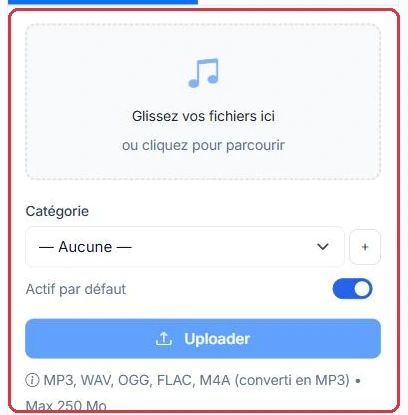
The import panel is shared across all production pages (spots, jingles, voice tracks, features, podcasts). It supports drag-and-drop or click; accepted formats and maximum size are displayed on the panel: "MP3, WAV, OGG, FLAC, M4A (converted to MP3) • Max 250 MB". Each file receives a title (derived from its name), a category, and the "Active by default" status; a cover image can also be added.
Replacement by name — if a file shares the name of an existing production, the "Replace existing productions" window opens: "N file(s) share the name of an existing production and will replace it (file + information updated, no duplicate)", and "Other files will be added normally." Confirm with "Replace and upload". This is the correct way to update a version without affecting the playlists that use it.
Category cover image — in the "Categories" panel, each category accepts an image ("Add an image" / "Change the image", JPG, PNG or WEBP, 5 MB maximum). The help text explains its role: "Image displayed next to the title in the radio player. Without a cover image, the category image and then the radio logo are used."
Deleting a category — the "Delete category" window shows the number of "file(s) in this category" and asks "What should be done with the productions in this category?": "Delete the category only" ("Productions are kept and moved to 'No category'") or "Delete the category AND the files" ("Permanently deletes all productions in this category.").
Move — from the list, a selection can be moved to another category using "Move to…".
Good to know:
A deleted production is sent to the bin on the "Storage" page and continues to use your storage space until you empty it (see the "Storage" tutorial).
Creating a jingle
Start the creation process to open the form. Fill in:
"Title" (required): an internal name to help you find it.
"Voice" (required): the text-to-speech voice, selected in the side panel (offcanvas).
"Intonation": "Standard" by default.
"Background sound": "No background sound" by default.
Advanced settings: voice volume (50 to 200%), intro and outro silences (0 to 5000 ms), background sound volume (5 to 50%).
"Jingle text" (required): the text to be read aloud, limited to 200 characters. A counter "X/200" shows the remaining space.
Good to know:
The 200-character limit is not a constraint but an advantage: it ensures a short, dynamic and punchy jingle — exactly what a sonic identity should be.
The two options: "Upload" for your existing files, "AI Creation" to generate one. Click to enlarge The "Upload" tab: file drop zone, category and accepted formats. Click to enlarge
Writing the text with the AI assistant
Click "Generate with AI" to open the script assistance modal. Fill in:
"Radio name" (required).
"Style": Dynamic, Elegant or Fun.
"Slogan" (optional): a tagline to incorporate.
The AI suggests a short, tailored text that you can adjust. Then launch production with "Generate jingle".
Result, playback and download
Each generation produces two versions: "Voice only" and "With background sound".
Download them with "Download ZIP".
Listen and fine-tune the result with "Edit production".
If you change the text, voice, intonation or background sound, regenerate with "Regenerate".
Tip:
Prepare a small, consistent collection of jingles (same voice, same style) for Intro, Transition and Station ID: your station will immediately gain a more professional sound.
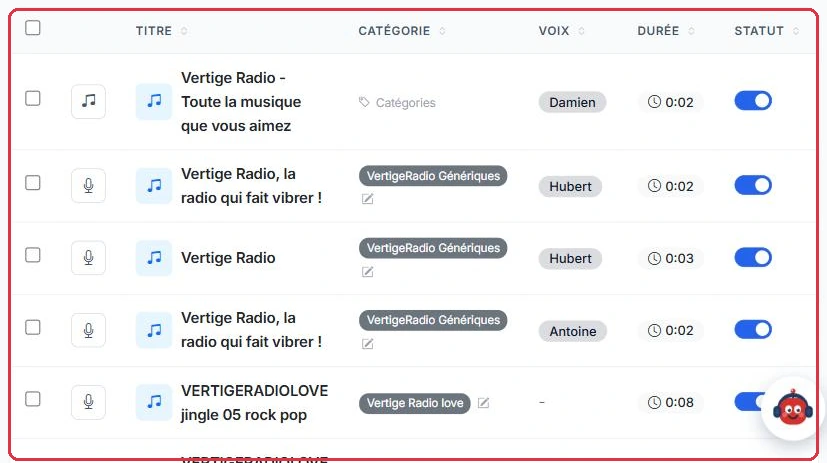
The jingle list: title, category, voice, duration and activation toggle. Click to enlarge
Credits
1 credit = 3 seconds of audio. While typing, the "Estimate: X credits" is calculated by rounding up the number of words divided by 2.5, then dividing the resulting seconds by 3. The actual speech rate is applied at generation time, based on the final duration.
AI creation requires an active subscription or a credit balance greater than zero; otherwise you will be redirected to the pricing page.