Moderate listener messages and broadcast them on air
What are dedications for?
Dedications allow your listeners to send a message that you can then moderate and convert into AI-spoken audio for broadcast on air. Three entry points feed the same list:
the Radio Player, if the "Dedications" option is enabled there;
your Radio Website, via the "Dedications" card in the builder: a scrolling banner above the player displays approved dedications, with a "Send a dedication" button;
your mobile app, which shows a "Dedications" tab as soon as the banner is enabled.
You can find this page in the Tools > Dedications menu. It is accessible to any logged-in account.
Good to know:
For listeners to be able to send dedications from the embeddable player, you must first have enabled the "Dedications" option in the Radio Player; for the website and app, it is the "Show the dedications banner on the site" toggle in the "Dedications" card of the builder.
The "Dedications" page, in the "Tools" menu. Click to enlarge
Filter by status
At the top of the page, clickable statistics cards act as filters: "Pending", "Approved" and "Rejected". Clicking a card instantly filters the table.
The three clickable counters: pending, approved, rejected. Click to enlarge
Configure the voice and background music
The "Configure voice & background music" button opens the "Audio dedications configuration" modal, where you define:
"Automatically approve dedications": a toggle that is enabled by default. While it is on, every dedication sent by a listener is approved immediately (and therefore visible in the website and app banner). Turn it off so that submissions arrive as "Pending" and go through your approval.
"Voice": the voice used to read dedications on air.
"Intonation" (optional): a reading style (energetic, calm…), or "— None (direct voice) —".
"Background music": mixed behind the voice, chosen from "System music" or "My music" (your own background tracks), or "— No background music —".
Finish by clicking "Save". A voice must be configured in order to generate audio.
Good to know:
If your radio is open to the public, consider disabling automatic approval: it is the only way to review a message before it appears on your site.
Tip:
The voice configuration is shared with "Host Voices": if you have already created a "Dedications" usage profile there, the voice is already ready to use.
The "Configure voice & background music" button, at the top right. Click to enlarge
The dedications table
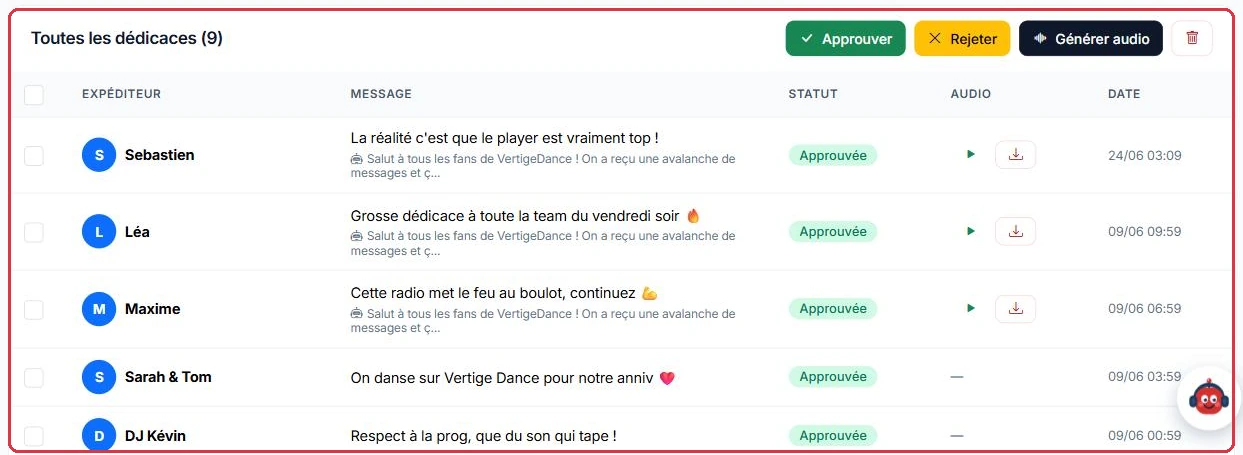
The table displays each dedication with a checkbox, the "Sender", the "Message", the "Status", the "Audio" and the "Date".
Bulk actions are available: "Approve", "Reject" and "Delete". The "Generate audio" button produces the audio, and can combine several selected dedications into a single production. The result displays the AI script, a playback player and a download link.
The table: sender, message, status, generated audio and date. Click to enlarge The bulk actions: approve, reject, generate audio, delete. Click to enlarge
Credits
Before each generation, a confirmation shows the cost: "This generation will cost approximately n credit(s) (estimate adjusted to the actual audio duration). Continue?". Once the audio is produced, the number of credits actually deducted is displayed. Combining several dedications into a single production is the best way to keep costs down. As a reminder, AI credits are used for generation only (1 credit ≈ 3 seconds) and broadcasting is free.