
Credits pay for AI generation: text-to-speech voices, spots, jingles, voice tracks, features, news flashes, and Top 10s. Each completed production is deducted from your balance.
Open the page from the profile menu, at the bottom of the sidebar, then "AI Credits". The credit counter displayed in the header is also clickable and leads to this page.

The rule of thumb is simple: 1 credit ≈ 3 seconds of AI audio, or roughly 20 credits per minute. Duration is rounded up to the nearest credit, with a minimum of 1 credit per production.
One additional rule applies: +1 credit per internet search actually performed during writing (typically a news feature, a weather report, or a news flash that fetches fresh information), up to a maximum of 5 searches, i.e. 5 credits per production. A production with no search incurs no such surcharge.
At the top of the page, a banner summarises three things:
If you have no credits subscription, the banner simply invites you to choose one.

The page has five tabs: "Subscription", "One-time purchase", "History", "My schedule", and "Simulator".
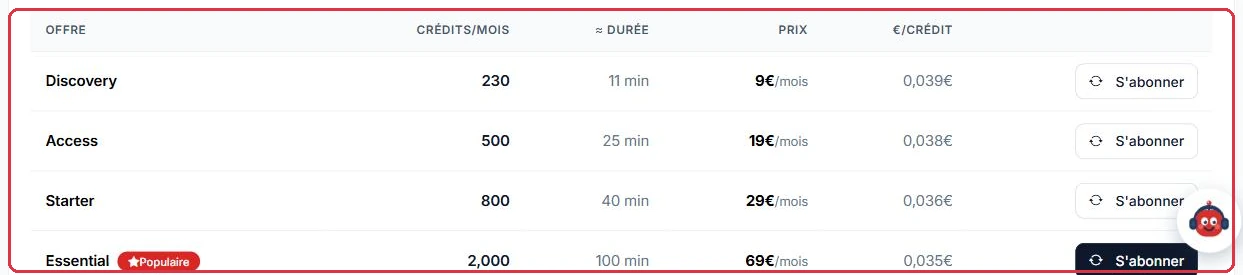
This is the tab open by default. It lists the available monthly credit subscriptions: "Plan", "Credits/month", "≈ duration", "Price", and "€/credit", making it easy to compare at a glance.
Credits are topped up automatically each month, with no commitment, cancellable at any time.
To modify, pause, or cancel your credits subscription, use the "Manage / Cancel on Stripe" button in the top banner: it opens your billing portal.

This tab offers one-off packs, with no commitment, available for immediate use. The table shows "Pack", "Credits", "≈ duration", "Price", and "€/credit". The "Buy" button takes you to payment, and your balance is credited as soon as the transaction is confirmed.
Credits purchased in a pack never expire and are added to your existing balance.
The history lists every transaction, 20 rows per page: "Date", "Description", "Type", the number of credits (in green for an addition, in red for consumption), and the "Balance" after the transaction.
The "Listen" column is the real added value: when the generated file is found, a playback button lets you replay the production directly from the history row. Otherwise a dash is displayed.
This tab answers a specific question: how many credits will your station consume on its own, without you clicking anything? It is based on your schedule, not your history: "Forecast estimate, calculated from your schedule — not your history: what the station will generate on its own, without you clicking."
Two categories are counted:
The "Total estimate" block gives credits per day and per month, followed by "For comparison, actually consumed over 30 days: …". Below that, the page concludes with "Recommended plan for this schedule: …", or, if the volume exceeds the largest plan, "A custom solution will be more suitable" along with the "Request a Pro solution" button.
The "Where the credits come from" table details each station: "Station / week", "Productions / day", "Credits / day", "Credits / month", with the links "Adjust in the simulator" and "Edit my schedule". If the schedule contains neither an AI presenter slot nor a scheduled feature, the tab displays "No automatic consumption detected" and the "View my schedule" button.
Radio Soleil has an AI presenter slot every 20 minutes from 6 am to 8 pm, and two AI features per day.
Why: it is the automatic consumption that drains a balance overnight, not the jingles you produce manually. Choosing a plan based on this figure prevents a silent station mid-month — when the balance hits zero, the AI presenter and automatic features are no longer generated.
The simulator estimates your consumption before you choose a plan. One row per content type (voice track, feature, news flash, advertising spot, jingle), and for each:
On the right, the "Estimate" block displays "Credits / day" and "Credits / month", then suggests the most suitable subscription plan. If your volume exceeds the largest plan, a "Request a Pro solution" button opens a support request.
Wherever a generation is blocked due to an insufficient balance — the show editor, the schedule, the assistant panel — a "Top up" link brings you back to this page. After a card purchase or subscription, the "Credits added!" page confirms the pack, the "Credits added", your "New balance", and the "Production time added", then offers "Back to dashboard", "View my balance", and "What would you like to create?" shortcuts. If you abandon the payment, you are simply returned to the "Subscription" tab with nothing charged.