Monthly subscription to ready-to-broadcast chronicles
What is "Radio Chronicle" for?
"Radio Chronicle" is a monthly subscription to chronicles written and recorded by journalists, ready to broadcast on your station. The page describes them as "Journalist chronicles ready to broadcast (RTB), updated and delivered every day."
You produce nothing yourself: the content is updated and made available automatically. You choose a pack, pay each month, and the chronicles appear in your account.
The page is located at /dashboard/chroniques-pad. You can access it via the "Radio Chronicle" button in the services bar displayed at the top of your dashboards, or via the "Radio Chronicle" card on the home screen.
It is organised into four tabs:
"My Chronicles" — delivered chronicles to listen to and download;
"Subscription & Invoices" — the pack catalogue, the subscription wizard, and the "My Chronicle Subscriptions" table;
"SFTP Access" — the credentials for the "Chronicles" folder for your broadcast automation system;
"VestaSync" — the licence and access key for the Windows application, as a compact version of the "Tools › VestaSync" page.
Good to know:
The services bar is only displayed if at least two services are active on your account. If you cannot see it, use the direct address. This page remains accessible even without an active radio hosting subscription.
The header: journalist chronicles ready to broadcast, on a monthly subscription Click to enlarge
Do not confuse the two types of "chronicles"
This is the most common source of billing confusion. Two features share a similar name but have nothing in common:
"Radio Chronicle" (this page): chronicles recorded by journalists, written by humans, delivered every day. They are paid for via a monthly subscription in euros, charged to a bank card. No AI credits are consumed.
AI-generated chronicles: you write or have a topic written, then a synthetic voice records it. These are found under "Production › Chronicles" and "Production › Auto AI Chronicle". They are paid for in AI credits, per generation.
In other words: on this page, you are purchasing content that has already been produced. Under "Production › Chronicles", you create your own content and consume your credit balance.
Good to know:
For the AI-generated version paid in credits, please refer to the page /guide/chroniques. Subscribing here does not top up your credit balance, and conversely, your credits do not pay for this subscription.
Example
Radio Soleil wants a chronicle called "What\'s On in the Valley", broadcast on Fridays. No pack contains this topic: this is a case for the AI chronicle.
Local topic, specific to your area: go to Production › Chronicles, paid in credits.
Chosen duration of 90 seconds: approximately 30 credits per episode, roughly 120 credits for a month at one per week.
Daily News Flash, Weather and Horoscope: there is no point regenerating these yourself — the subscription already delivers them written and recorded.
Why: the subscription covers generic, daily content; credits are for what no one else can produce on your behalf — your local content.
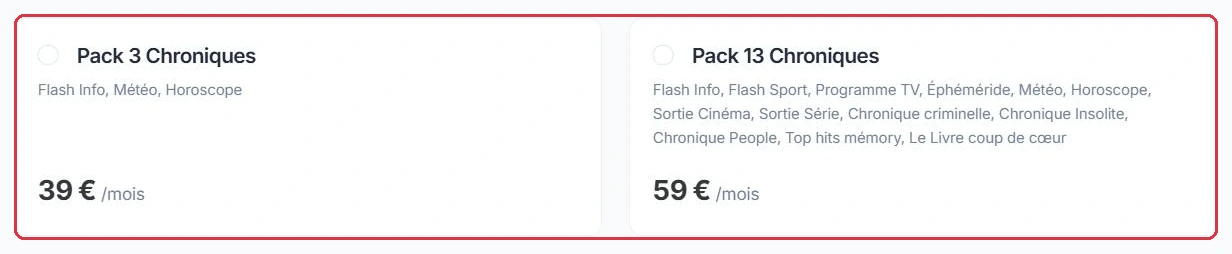
"13-Chronicle Pack" — News Flash, Sports Flash, TV Guide, This Day in History, Weather, Horoscope, Cinema Releases, Series Releases, Crime Chronicle, Unusual Chronicle, Celebrity Chronicle, Top Memory Hits, Book of the Week.
Each chronicle has its own broadcast schedule:
News Flash: 7 days a week, updated almost every hour from 6 am to 7 pm — a new flash is delivered throughout the day, ready to air at the top of each hour.
Sports Flash: 5 days a week, at 9 am Monday to Friday.
TV Guide, This Day in History, Weather, Horoscope: 7 days a week, at midnight.
Unusual Chronicle: Monday. Crime Chronicle: Tuesday. Cinema Releases: Wednesday. Series Releases: Thursday. Celebrity Chronicle: Friday. Book of the Week: Saturday. Top Memory Hits: Sunday.
New — "What the Record Doesn\'t Say": Tuesday. Available individually, outside the packs: behind every major French chanson hit, a story of money, credits or justice that nobody tells. Who wrote it? Who got paid? Who was forgotten?
Example
With the "3-Chronicle Pack", here is what a broadcast day looks like on Ambiance FM.
Midnight: Weather and Horoscope delivered→6 am: first News Flash→7 am, 8 am… an updated flash almost every hour→7 pm: last News Flash
Seven days a week, without exception. You are not required to broadcast every flash: simply schedule the slots that suit you (for example 7 am, 8 am, noon and 6 pm) — the version aired will always be the most recent. With the "13-Chronicle Pack", the week also gains one appointment per day: Unusual on Monday, Crime on Tuesday, Cinema on Wednesday, Series on Thursday, Celebrity on Friday, Book of the Week on Saturday, Top Memory Hits on Sunday — plus the Sports Flash at 9 am Monday to Friday.
Why: these schedules are fixed. Set your slots once to match these times and the schedule fills itself in the months that follow.
The two packs and the detail of their chronicles Click to enlarge
Pricing and what affects it
The price of a pack depends on a single parameter: your broadcast type. The page states this explicitly: "Pack pricing depends on the broadcast type."
"3-Chronicle Pack": €39 per month for "Web Radio", €90 per month for "FM + DAB Radio".
"13-Chronicle Pack": €59 per month for "Web Radio", €150 per month for "FM + DAB Radio".
The prices displayed on the pack cards update automatically as soon as you change the broadcast type in step 1.
Good to know:
"Web Radio" corresponds to "online broadcasting (webradio)", and "FM + DAB Radio" to "FM and/or DAB+ terrestrial broadcasting". Choose the type that genuinely matches your operation: it determines the amount charged each month.
Example
Two radio profiles, two different decisions.
Radio Soleil, an community webradio with a morning show and music for the rest of the day: "Web Radio" + "3-Chronicle Pack" = €39 per month. Three news appointments are enough to structure the day.
Studio Nova, broadcasting on FM and DAB+, wanting a spoken segment every day: "FM + DAB Radio" + "13-Chronicle Pack" = €150 per month.
The same "13-Chronicle Pack" costs €59 per month on "Web Radio": it is indeed the broadcast type, and that alone, that changes the bill.
Why: start with the 3-Chronicle Pack if your schedule does not yet have room for thirteen appointments. A pack that is paid for but never programmed is never heard on air.
The broadcast type, which determines pack pricing Click to enlarge
The subscription wizard, step by step
Subscribing is done through a four-step wizard, with "Previous" and "Next" buttons at the bottom of the page:
Step 1 — "Broadcast": select "Web Radio" or "FM + DAB Radio". "Web Radio" is pre-selected.
Step 2 — "Plan": under the heading "Our chronicle packs", choose "3-Chronicle Pack" or "13-Chronicle Pack". Until a selection is made, the message "Please choose a pack to continue." prevents you from moving to the next step.
Step 3 — "Your Station": the "Your station name" field is pre-filled with your station\'s name. It is used to prepare the delivery of your chronicles.
Step 4 — "Summary": the selected plan and the "Monthly total" are displayed. The "Confirm and pay" button opens the payment page.
Tip:
You can go back by clicking directly on the numbered circles in the wizard. As long as no pack is selected, the subsequent steps remain locked.
The four steps: broadcast, plan, your station, summary Click to enlarge
Payment
Payment is made by bank card on a secure Stripe payment page. This is a recurring monthly subscription: the amount is charged automatically every month until you cancel.
Your account email address is pre-filled on the payment page.
A promotional code field is available on this page.
If you abandon the payment, you are returned to the page with the message "Payment cancelled" and the line remains pending.
Each subscription is assigned a reference in the format CHR-year-number (for example CHR-2026-0042), which is useful if you contact support.
Good to know:
The subscription is monthly with no commitment and can be cancelled at any time on request. The summary reminds you of this before payment.
Monitoring and cancelling your subscription
As soon as a subscription exists, the "My Chronicle Subscriptions" table appears at the bottom of the page, with the columns "Station", "Amount", "Status", "Since" and "Actions".
Three statuses are possible:
"Awaiting payment" — the order has been created but payment has not been completed.
"Active" — the subscription is running and the monthly charge is in place.
"Cancelled" — the subscription has been stopped; the line remains visible in the history.
The action button changes depending on the status:
On an "Active" subscription, the "Cancel" button asks for confirmation with the message "Cancel this subscription? The monthly charge will be stopped." The subscription then moves to "Cancelled" and the charge stops.
On a line that is "Awaiting payment" or already "Cancelled", the button becomes "Delete" and simply removes the line from the history, after the message "Permanently delete this line?".
Good to know:
If the cancellation fails, the page displays "Unable to cancel this subscription. Please contact support." Do not click repeatedly: open a ticket and the team will stop the charge manually.
Example
Two lines in "My Chronicle Subscriptions", two different buttons.
An "Active" line at €39: the button is "Cancel". You confirm "Cancel this subscription? The monthly charge will be stopped.", the line moves to "Cancelled" and remains visible in the history.
An "Awaiting payment" line, left by an abandoned payment: the button is "Delete". It costs you nothing; it simply clutters the table.
Why: "Cancel" stops a charge; "Delete" cleans up a line. On an active subscription, only "Cancel" stops the billing.
Where your chronicles go next
Once the subscription is "Active", the ready-to-broadcast chronicles become accessible in your account without any action on your part. You will find them:
in the playlist editor, under the "Chronicle" tab, to drag into your playlists;
in "Programming", under the "Ready Chronicles" tab, to schedule at a fixed time in your schedule;
via "Tools › VestaSync", which automatically downloads your chronicles (both automated and RTB) to your Windows computer.
If your broadcast automation system needs to retrieve the files itself, the VestaSync page also provides SFTP access: a single read-only "Chronicles" folder, updated every 10 minutes. This access is opened by our team on request.
Tip:
An active "Radio Chronicle" subscription grants access to official ready-to-broadcast chronicles, even if they are not included in your radio hosting plan. It is the simplest way to unlock the News Flash without changing your plan.
Example
Your News Flash has been delivered: now it needs its place on air. Two ways to do it, depending on the precision required.
Programming › "Ready Chronicles"→Slots at the top of each hour, from 6 am to 7 pm
Playlist editor › "Chronicle" tab→Added to the rotation
Why: a scheduled slot guarantees the exact time of the appointment; a playlist plays it "whenever it comes up". For a news flash, a scheduled slot is the right choice.
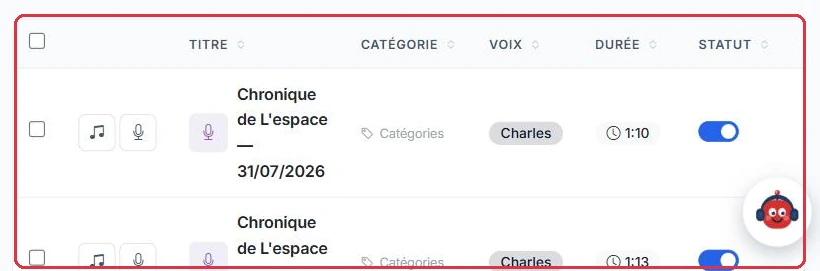
The "My Chronicles" tab on the page lists everything that has been delivered to you, with a counter of available chronicles and a table showing "Chronicle", "Category", "Duration", "Updated", "File": a listen button and a download button per line, plus a search field. Immediately after subscribing, the tab displays "Your chronicles are on their way: they are published and updated automatically. If nothing appears by tomorrow, contact us via the support chat."
Delivered chronicles appear under "My Chronicles" Click to enlarge