Track the spoken segments generated for your station
What is the "AI Host" for?
The AI Host inserts short spoken segments between your tracks, without you having to record anything. The "AI Host" page is the monitoring page: it lists all segments already produced for your station, along with their text, audio, status, and credits consumed.
You can find it in the "Production" > "AI Host" menu.
The page subtitle sums it up: "Spoken segments generated automatically (track announcements, features) — broadcast via your playlists."
Good to know:
This page is read-only for production purposes: segments are not created here. Everything is triggered from your playlists, the show generator, or scheduled programming slots. Only one setting is managed from this page: "Station Angles", i.e. the topics the host talks about (see below).
The "AI Host" page, in the "Production" menu. Click to enlarge
Access requirements
Two conditions must be met to access the page:
Having a station linked to your account. Without a station, the page has no data to display and the selector remains empty.
Having an active subscription, or at least one installed station: without either, you are automatically redirected to the dashboard.
You also need, of course, AI credits available on the account: without credits, segments are given the status "Insufficient credit" and nothing is broadcast.
The station selector
If your account manages multiple stations, a drop-down list appears at the top right of the page, next to the action buttons. It displays the tooltip "Displayed station."
The entire page — statistics cards, table, and credits — is filtered to show one station at a time: whichever is selected.
Your selection is remembered and remains consistent with the rest of your dashboard.
If you only manage one station, the selector is not displayed at all.
Tip:
This is the most common pitfall: you see "No segments generated yet" even though your station is broadcasting. First check the station selected in the selector — the segments may belong to another station on your account.
The station selector and page actions: clear the queue, delete all, open playlists. Click to enlarge
How segments are created
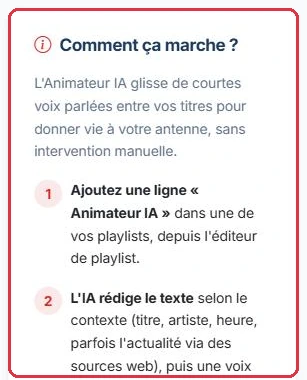
The "How does it work?" panel on the left of the page outlines the four steps:
You add an "AI Host" line to one of your playlists, from the playlist editor (the "Host" tab, or the "AI Host (dynamic)" insertion menu).
The AI writes the text based on context: track title, artist, time of day, and sometimes current news via web sources.
A synthetic voice reads the text aloud.
Broadcast is automatic: the voice is continuously regenerated to stay up to date.
The "Playlists" button at the top of the page takes you directly to your playlist list; the "Station Angles" button opens the page of the same name.
A segment can originate from three places:
an "AI Host" line in a playlist, configured in the editor (tabs "When", "Voice & Sound", "Content", "Settings");
a "Host" line in the show generator (see the Create a Show guide), which inherits the voice and topic from the show;
a host segment in a scheduled slot on the "Programming" page (weather, news, on this day, or a free topic at a fixed time), produced just before each occurrence.
The "Type" column distinguishes music announcements: "Back-announce (past track)" (the announcement of the track that just played), "Upcoming track announcement", and "Feature announcement". Weather, news, on this day, and free topic blocks appear with their own code, and their text is displayed like any other.
The "How does it work?" panel: the playlist line triggers the writing, then the voice. Click to enlarge
The segments table
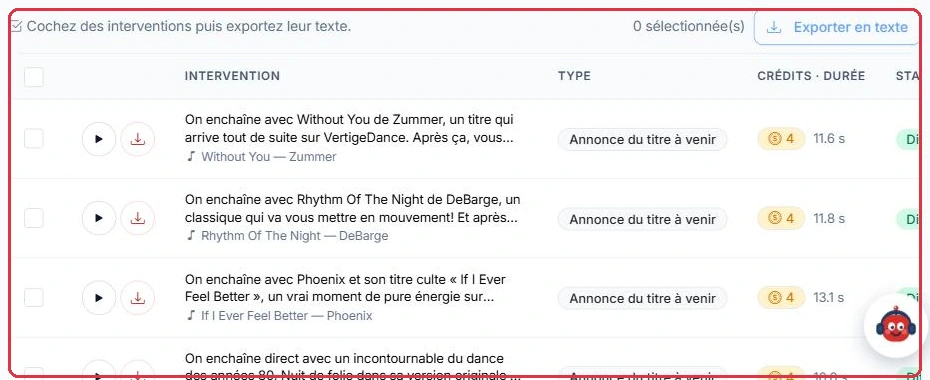
The table lists segments for the selected station, most recent first, 50 per page. Its columns are:
A checkbox (with "Select all on this page" in the header).
An audio actions column: a round "Play" button and a round "Download MP3" button. These only appear when the segment is ready; otherwise a spinner is shown.
"Segment" — the text read on air, truncated to two lines, with the relevant track title and artist shown below. Click it to open the "Segment" window and read the full script.
"Type" — the type of segment.
"Credits · Duration" — the credits charged and the actual duration produced, in seconds.
"Status". In the event of a failure, the beginning of the error message is displayed below the status.
"Date" — the creation date, and below it the generation date when the voice was produced.
In the "Segment" window, three actions are available: "Play", "Download MP3", and "Copy text".
Web sources consulted. When the AI drew on current news to write its text, a small button appears below the segment, indicating the number of sources used ("1 source", "3 sources"...). Clicking it expands the list of links consulted; each source opens in a new tab, with the page title or, failing that, the site name as a label. This is the easiest way to verify where a piece of information broadcast on air came from.
Good to know:
The downloaded file is renamed for readability, in the format animateur-ia- followed by the segment number and its date. The stored file is overwritten with each broadcast: download it if you want to keep a copy.
The table: playback, download, segment text, type, credits and duration, status. Click to enlarge
Multiple selection and text export
Above the table, a prompt invites you to "Check segments and then export their text."
Check the desired rows, or use the header checkbox to select all on the current page.
A counter displays the number of "selected" segments.
The "Export as text" button remains disabled until at least one item is checked.
The export produces a .txt file containing, for each segment, its date, type, musical context, and full text. The file is generated directly in your browser, with no waiting time.
Good to know:
The selection only applies to the currently displayed page and to segments that have text. If you navigate to another page, the selection resets.
The "Export as text" button, active as soon as a segment is checked. Click to enlarge
Statuses, statistics, and batch progress
Five cards summarise activity for the selected station: "In progress", "Created", "Pending", "Credits used", and "Duration produced".
The possible statuses for a segment are:
"Pending" — it is in the queue; production has not yet started.
"In progress" — the voice is currently being generated.
"Ready to broadcast" — it is ready, playable, and downloadable.
"Insufficient credit" — the station account needs to be topped up.
"Error" — a failure, retried automatically.
While segments are in the queue, a blue banner is displayed: it shows the number of segments currently being generated, notes that they are created progressively (approximately 20 per minute), and that the page refreshes automatically. Just below, a progress bar tracks the progress of the current batch — segments created in the last 30 minutes — with the detail "X / Y ready" and the percentage.
Tip:
The automatic refresh pauses while you are listening to a clip: playback will not be interrupted mid-way through.
You do not need to stay on this page to monitor a batch: as long as voices are being prepared, an "AI Generation" panel with a progress bar is displayed in the sidebar on every dashboard page. Clicking it brings you back here ("View details of segments currently being generated").
The counters: in progress, created, pending, credits used, and total duration produced. Click to enlarge
Clearing the queue
Two buttons appear at the top of the page as soon as at least one segment exists:
"Clear queue" — removes segments with the status "Pending" and "In progress." This is the action to use to stop a backlog that has built up and halt credit consumption.
"Delete all" — removes the queue and the entire history for the selected station.
A confirmation is required in both cases, and the action only applies to the currently selected station.
Good to know:
Clearing the queue does not disable the AI Host. As long as the "AI Host" line remains in your playlist, new segments will be recreated at the next broadcast. To stop it entirely, remove the line in the playlist editor.
Station Angles
The "Station Angles" button opens the page that determines what the host talks about before playing a track: the track itself, the artist, the time of day, the morning commute, those keeping the night shift… An angle is drawn for each segment, based on the time slot, without ever repeating the same topic back to back. You can disable the built-in angles, limit how many are used per day, and add your own (the Sunday market, the beach, the terraces…).
Everything is covered in detail in the Station Angles guide.
Tip:
If you repeatedly see the same weather phrase or the same opening line here, it means there are not enough angles available for that time slot — it is not a voice issue. Add more angles before changing anything else.
AI Host vs. voice-track: the real difference
This is the key point to remember, and the most common source of unexpected credit charges.
A voice-track ("Production" menu > "Voice Tracks") is produced once only. You pay for its creation once, then broadcast it as many times as you like at no further cost.
An AI Host segment is regenerated every time it plays, to stay current with the track being broadcast and the latest news. Each broadcast therefore deducts credits, calculated on the actual duration produced.
The playlist editor reminds you of this when you add an AI Host line: with every broadcast, each segment is regenerated and credits are deducted.
Tip:
Keep an eye on the "Credits used" card during the first few days. If consumption rises faster than expected, space out the AI Host lines in your playlists rather than deleting everything.