From hand-written pieces to automated daily content
What is a chronicle?
A chronicle is a themed spoken-word piece (news, culture, weather, sport, horoscope…) broadcast on your station. It is the richest production type in Vesta Radio Studio: it offers three working modes, from a hand-written piece to automatically generated daily content.
This feature requires the "chronicles" permission. You will find it in the Production > Chronicles menu.
The "Chronicles" page, in the "Production" menu. Click to enlarge
Mode 1: the classic chronicle
Click "Generate" to write a chronicle from scratch. Fill in:
"Voice" (required), "Intonation" ("Standard" by default), "Background sound" ("No background sound" by default) and the advanced settings (voice volume 50–200%, intro/outro silences 0–5000 ms, background volume 5–50%).
"Chronicle text" (required).
The "Generate with AI" button opens a writing-assistance modal: "Subject" (required), "Description" (optional), "Type" (News, Culture, Opinion, Tech) and "Duration" (~30 s, ~1 min by default, ~2 min).
The two entry points: "Upload" to import a file, "AI Creation" to generate one. Click to enlarge
Mode 2: Ready to Broadcast (RTB)
At the top of the page, a "Ready to Broadcast · AI · web search" panel offers six buttons: "News flash", "Weather", "Sport", "Horoscope", "On this day" and "Cinema". These chronicles are based on real up-to-date information retrieved via web search.
The fields vary depending on the selected type:
News flash: Local (city) or Thematic.
Weather: City or Region.
Depending on the case: Subject/City, "Station name" (optional), "Announce the time" and "Mention the presenter" toggles, "Priority sources" (URLs) and "Target duration" (15, 30, 45, 60, 90 or 120 s).
Plus the usual Voice, Intonation, Background sound and advanced settings.
Two buttons are available: "Generate text only" (to review before production) and "Generate text + audio" (all at once). Your RTB preferences are remembered between sessions.
Good to know:
Do not confuse these RTB chronicles, which you generate yourself using your credits, with the "Radio Chronicle" service (page /dashboard/chroniques-pad): journalist-produced chronicles ready to broadcast, delivered daily by monthly subscription, with its "My chronicles", "Subscription & invoices", "SFTP access" and "VestaSync" tabs. This service is covered in the Radio Chronicle guide.
The "Ready to Broadcast" panel: a chronicle built from real up-to-date information. Click to enlarge The available types at a click: news flash, weather, sport, horoscope, on this day, cinema… Click to enlarge
Mode 3: automatic scheduling
Click "Scheduling" to create recurring schedules that run automatically without any intervention. The "New schedule" button opens a three-tab modal:
Content: "Name" (required), Type, "Language" (fr, en, es, de, it), Subject/City and sub-options, "Duration" (20 to 300 s), Sources, "Announce the time" and "Mention the presenter" toggles.
Broadcast: Station and time zone, multiple time slots, "Active" (yes/no), days of the week (Monday to Sunday).
For each schedule, the following actions are available: "Listen", "Generate now", "Edit", "Activate / Pause" and "Delete".
Tip:
RTB mode is ideal for daily content that is always up to date (news flash, weather). Combined with automatic scheduling, your station broadcasts fresh chronicles every day without any manual action.
The "Auto scheduling" button, at the top right of the panel. Click to enlarge
Output and download
Like all vocal productions, each audio generation provides two versions, "Voice only" and "With background sound", downloadable via "Download ZIP" and editable via "Edit production".
Your chronicle list
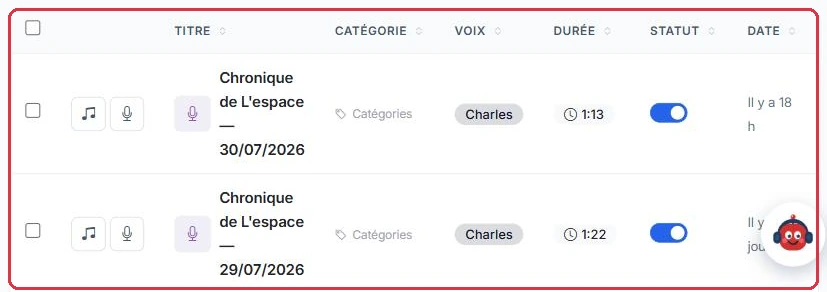
The "My chronicles" page lists all your chronicles, both classic and RTB, showing the cover art thumbnail, the "Title", "Category", "Voice", "Duration", "Status" and "Date"; each column can be sorted with a single click. At the start of each row, two quick-listen buttons (with background sound, voice only). At the end of each row: download the ZIP, view details, "Edit title and cover art" and delete.
Click the category on a row to change it or create a new one on the spot.
Select multiple rows (or the header checkbox) to use the bulk actions "Category" (add, remove, replace the category, or assign the same cover art to the entire selection) and "Delete".
The cover art is the image displayed next to the title in the radio player; if no cover art is set, the category image and then the station logo are used instead. JPG, PNG or WEBP, 5 MB maximum. It can also be set on the chronicle detail page, in the "Cover art" block.
The chronicle list: title, category, voice, duration, status and age. Click to enlarge
Credits
1 credit = 3 seconds of audio. While you type, the "Estimate: X credits" is calculated by rounding up the number of words divided by 2.5, then dividing the resulting seconds by 3. The actual speech rate is applied at generation time, based on the final duration.
For a Ready to Broadcast chronicle, the web search is added on top of the audio cost: 1 credit per search actually performed, up to a maximum of 5 credits per chronicle. This surcharge is deducted as soon as the text is generated (including when using "Generate text only"); the audio is then billed according to its duration, just like a classic chronicle.
Good to know:
AI generation requires an active subscription or a credit balance greater than zero; otherwise you will be redirected to the pricing page. Automatic scheduling consumes credits each time a scheduled task runs.